Migrate to Organization Auth Tokens
This guide walks through migrating an existing nRF Cloud Location Services integration from a legacy Service Token to an Organization Auth Token (OAT).
Service Tokens and Evaluation Tokens are deprecated. Service Tokens will continue to work during the deprecation window, but new Evaluation Tokens cannot be created. To avoid service disruption, complete the migration as soon as possible.
What's changing
| Aspect | Before (Service / Eval Token) | After (OAT) |
|---|---|---|
| Where you get it | nRF Cloud dashboard | Memfault dashboard (via nRF Cloud SSO) |
| Auth header | Authorization: Bearer <service_token> | Authorization: Bearer <OAT> |
| URL shape | /v1/location/<endpoint> | /v1/organizations/<ORG_SLUG>/projects/<PROJECT_SLUG>/location/<endpoint> |
| Scoping | Implicit per token | Scoped to a Memfault organization; project specified in the URL |
| Rotation | Manual | Manual; OATs can be revoked individually from the Memfault dashboard |
The following endpoints are also deprecated and may be removed any time after July 1st, 2026:
/v1/account/service-token/v1/account/service-key-and-token
Before you begin
You will need:
- Access to your nRF Cloud account.
- Organization Admin access in the linked Memfault Organization. If you are not an admin, ask one of your organization's admins to either grant you the role or create the OAT for you. See Access Control: Teams & Roles.
- Your existing API client code or device firmware so you can update the
Authorizationheader and request URL.
Service Tokens keep working during the deprecation window, so you can deploy OAT-based code alongside the existing token, verify it in production, and then decommission the Service Token. There is no need for a hard cutover.
Step 1: Log in to nRF Cloud
Go to nRF Cloud and sign in with your nRF Cloud credentials.
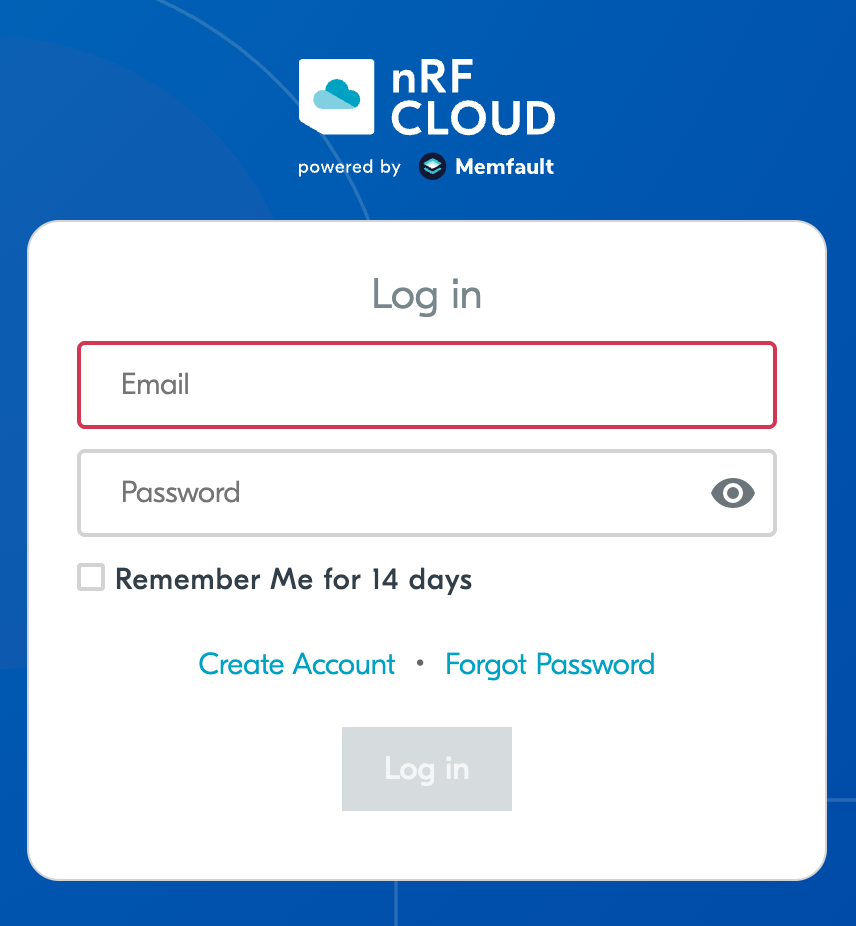
Once signed in, you'll land on the nRF Cloud dashboard.
Step 2: Open the Memfault dashboard from nRF Cloud
In the left sidebar of nRF Cloud, click the Memfault item (it shows the Memfault logo). This takes you to the nRF Cloud by Memfault dashboard via single sign-on.
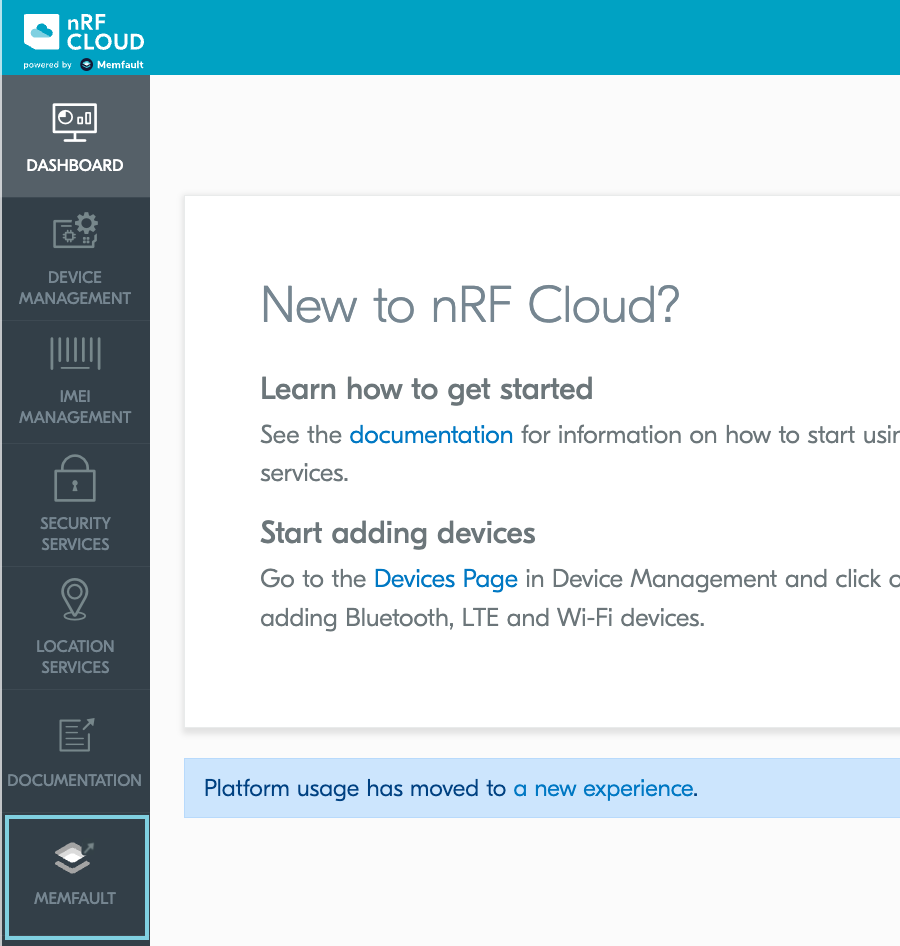
You'll briefly see a "Redirecting to Memfault" splash screen, then arrive at the Memfault dashboard for the organization that corresponds to your nRF Cloud team.
If your nRF Cloud team was created before the nRF Cloud integration, you may see a one-time prompt to link or create a nRF Cloud organization. Accept the prompt to continue. The resulting nRF Cloud organization will share the name of your nRF Cloud team and contain a default project named nRF Project.
Step 3: Find your Organization and Project slugs
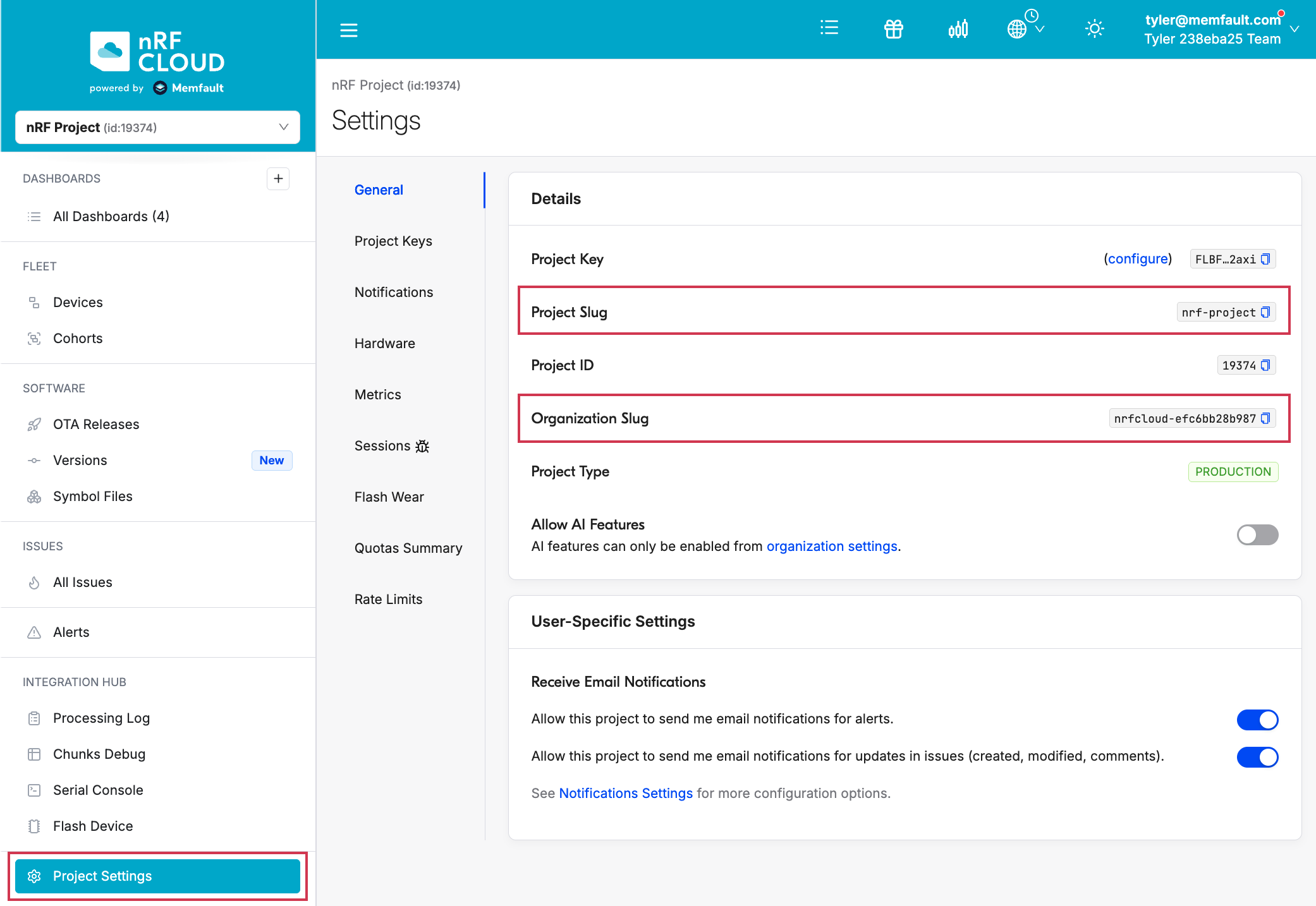
Memfault structures your teams and devices in Organizations and Projects. You'll need both the Organization slug and Project slug to construct Location Services API URLs.
In the left sidebar, click Project Settings → General. Copy the Organization Slug and Project Slug values from the Details panel.
Step 4: Create an Organization Auth Token
Now we need to create an OAT.
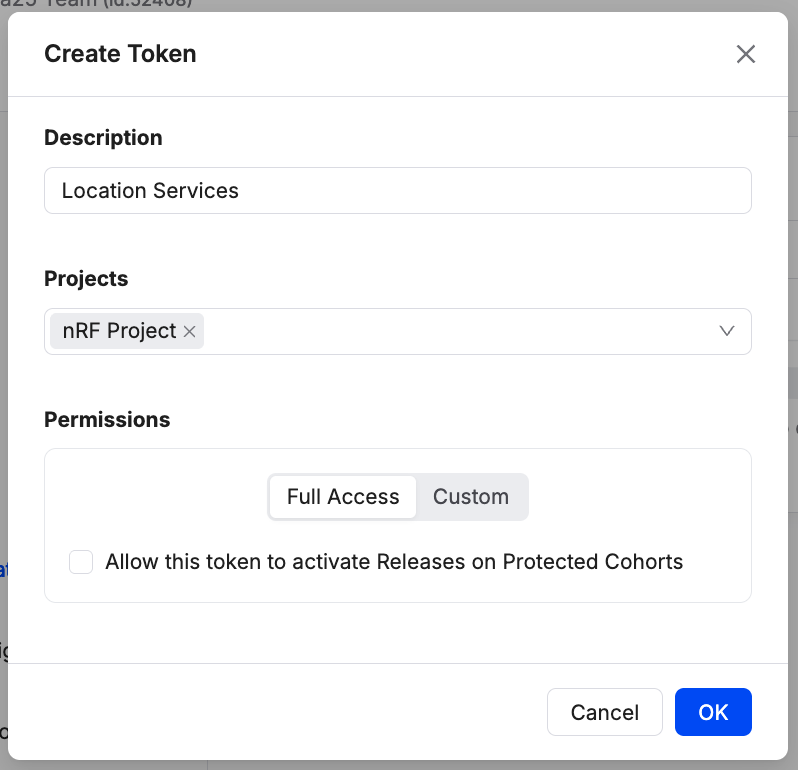
From the left sidebar, click Admin, open the Organization Auth Tokens tab, and click Create Token.
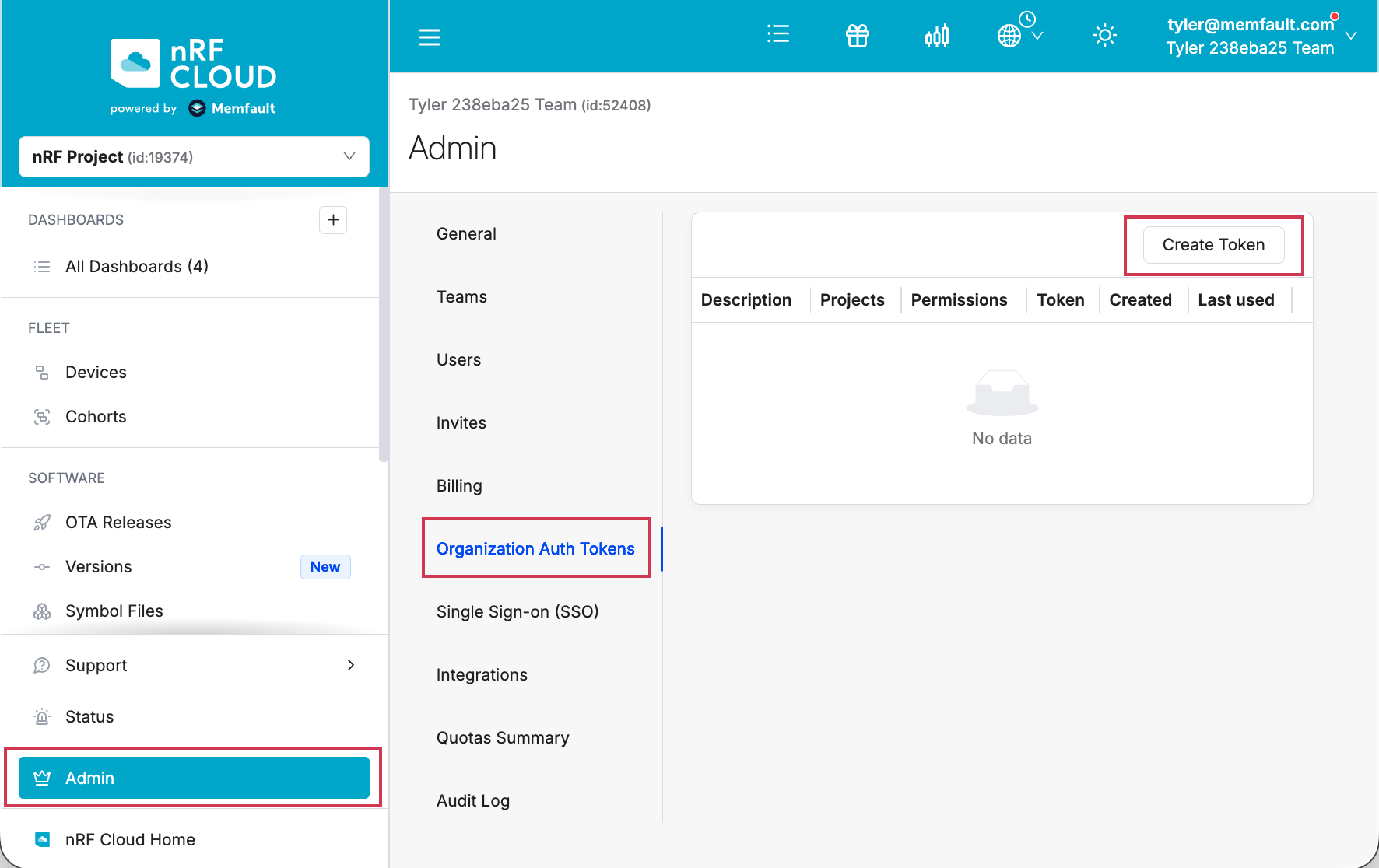
Enter a description (for example, Location Services) and click Create.
Copy the token immediately and store it somewhere secure. nRF Cloud will not display the secret value again.
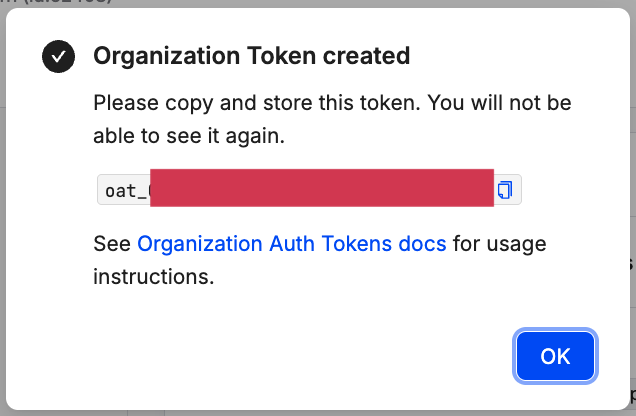
For more details on OATs, see Organization Auth Tokens.
Do not commit OATs to source control or paste them into chat. They grant the same permissions as an Organization Admin would have via the API.
Step 5: Update your client code
You need two changes per call site:
- Replace the token in the
Authorizationheader. - Rewrite the URL to include your Organization Slug and Project Slug.
URL changes
| Endpoint | Before | After |
|---|---|---|
| Wi-Fi | https://api.nrfcloud.com/v1/location/wifi | https://api.nrfcloud.com/v1/organizations/<ORG>/projects/<PROJECT>/location/wifi |
| Cellular | https://api.nrfcloud.com/v1/location/cell | https://api.nrfcloud.com/v1/organizations/<ORG>/projects/<PROJECT>/location/cell |
| Ground Fix | https://api.nrfcloud.com/v1/location/ground-fix | https://api.nrfcloud.com/v1/organizations/<ORG>/projects/<PROJECT>/location/ground-fix |
| A-GNSS | https://api.nrfcloud.com/v1/location/agnss | https://api.nrfcloud.com/v1/organizations/<ORG>/projects/<PROJECT>/location/agnss |
| P-GPS | https://api.nrfcloud.com/v1/location/pgps | https://api.nrfcloud.com/v1/organizations/<ORG>/projects/<PROJECT>/location/pgps |
cURL example
Before: using a Service Token:
curl -X POST \
  https://api.nrfcloud.com/v1/location/wifi \
  -H "Authorization: Bearer $NRFCLOUD_SERVICE_TOKEN" \
  -H "Content-Type: application/json" \
  -d '{ "accessPoints": [ ... ] }'
After: using an OAT:
curl -X POST \
  https://api.nrfcloud.com/v1/organizations/$NRFCLOUD_ORG/projects/$NRFCLOUD_PROJECT/location/wifi \
  -H "Authorization: Bearer $NRFCLOUD_OAT" \
  -H "Content-Type: application/json" \
  -d '{ "accessPoints": [ ... ] }'
Step 6: Verify the new token end-to-end
Run a single request with the new URL and OAT and confirm a 200 OK:
curl -i -X POST \
  "https://api.nrfcloud.com/v1/organizations/$NRFCLOUD_ORG/projects/$NRFCLOUD_PROJECT/location/wifi" \
  -H "Authorization: Bearer $NRFCLOUD_OAT" \
  -H "Content-Type: application/json" \
  -d '{
    "accessPoints": [
      { "macAddress": "30:86:2d:c4:29:d0", "signalStrength": -45 },
      { "macAddress": "3c:37:86:5d:75:d4", "signalStrength": -45 }
    ]
  }'
If you receive a 401 Unauthorized, double-check that:
- The
Authorizationheader usesBearer, notToken. - The OAT was copied in full, with no trailing whitespace.
- The Organization Slug and Project Slug match exactly what's in the Memfault dashboard (slugs are lowercase and hyphenated).
A 404 Not Found usually means the URL path is malformed. Confirm both slugs
are present and that /location/<endpoint> follows them.
Troubleshooting
| Symptom | Likely cause | Fix |
|---|---|---|
401 Unauthorized immediately | Wrong header format, truncated token, or token belongs to a different organization | Re-copy the token; confirm slugs match the org that issued the OAT |
403 Forbidden | OAT is valid but the project does not have Location Services enabled | Enable Location Services for the project, or use the project that has it enabled |
404 Not Found on a previously working endpoint | URL still uses the old /v1/location/... shape | Update to /v1/organizations/<ORG>/projects/<PROJECT>/location/... |
| No Memfault item in the nRF Cloud sidebar | Your nRF Cloud team is not yet linked to a Memfault Organization | Contact nRF Cloud support to link your team, or sign up at nRF Cloud |
| Memfault dashboard loads but Admin → Organization Auth Tokens is hidden | Your Memfault user is not an Organization Admin | Ask an admin to grant the role or create the OAT for you |