Verifying attestation tokens
This guide explains how to generate attestation tokens for Nordic Semiconductor devices and verify the authenticity of those devices by submitting tokens to the Identity Service.
Tokens are generated separately for each device, but you can submit multiple tokens as a bulk operation.
Once you have generated a token, you can submit it to nRF Cloud to verify that the device is genuine.
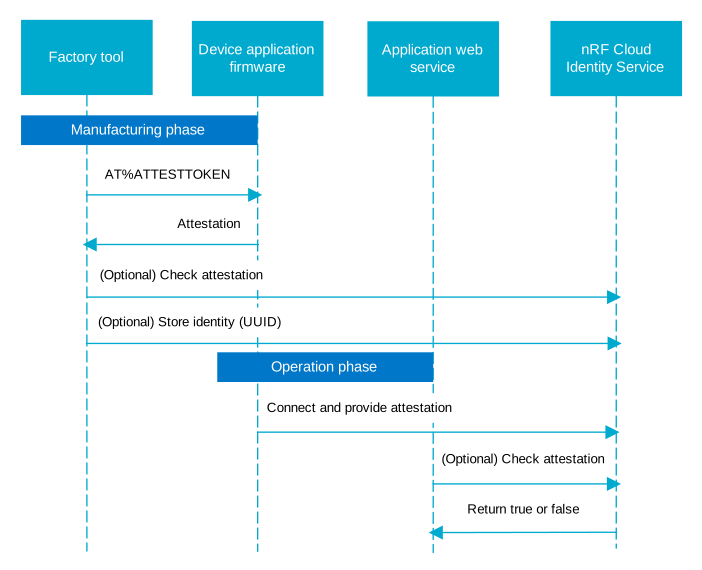
The following diagram shows the sequence of steps in the token verification process:
Prerequisites and requirements
For this guide, you need the following:
- An nRF Cloud account if you do not already have one.
- A serial terminal application to connect directly to your device, such as Serial Terminal v1.0.1 or later. Serial Terminal is part of nRF Connect for Desktop v4.0.0 and later.
- An nRF91x1 SiP.
- Modem firmware v2.0.0 or later (required for AT commands).
Generating attestation tokens
You can generate attestation tokens with the modem using AT commands. This token is then used to verify that the device is a genuine Nordic Semiconductor product. Store the generated tokens in your own trusted database for later verification.
See the documentation for the
%ATTESTTOKEN
and
%KEYGEN
AT commands for more information on required parameters.
The following methods generate different types of attestation tokens that
include varying levels of information. Choose one token type depending on your
use case and the amount of information you
want to pass to nRF Cloud. The identity attestation token generated using the
%ATTESTTOKEN
AT command is the only token type that you can use to claim a device.
- Identity attestation token
- Client key pair
- Certificate signing request (CSR)
- JSON Web Token
Enter the following command:
AT%ATTESTTOKEN
The response contains a Base64 URL-encoded device identity attestation message that includes the device type, UUID, and COSE authentication metadata.
This is the only token type that you can use to claim a device.
Enter the following command:
AT%KEYGEN=1024,2,1
The response contains a Base64 URL-encoded public key and COSE signature,
separated by a dot . character. Store the entire token if you want to verify
the public key hash in the signature. Store only the second part if you do not
want to share the public key with the Identity Service. In this case, the hash
of the token is not verified.
Enter the following command:
AT%KEYGEN=1024,2,0,"O=Nordic Semiconductor,L=Trondheim,C=no","101010000"
The response contains a Base64 URL-encoded CSR and COSE signature, separated by
a dot . character. Store the entire token if you want to verify the CSR hash
in the signature. Store only the second part if you do not want to share the CSR
with the Identity Service. In this case, the hash of the token is not verified.
Enter the following command:
AT%JWT: 0,3600,"ClientAuth","urn:server"
The response is a JWT with the specified subject, audience, and expiration.
You can now verify these tokens, and therefore device authenticity, using either the nRF Cloud portal or the APIs.
Verifying attestation tokens in the nRF Cloud portal
To submit tokens for verification:
-
Log in to the nRF Cloud portal.
-
In the nRF Cloud portal, select Security Services from the left navigation bar.
-
Select Verify Tokens.
-
Choose the token type and whether the request is single or bulk.
-
Upload one or more tokens:
- For a single token, copy the token into the Token text box.
- For bulk verification, drag and drop a
CSV file containing the stored
tokens, or click the Token box to attach the file.
- When you upload a CSV file for bulk verification, the service parses the file and displays the tokens.
-
Click Verify Tokens to submit.
The response depends on whether you submitted one or multiple tokens:
- For a single token, a box appears with the result of the operation.
- For a bulk operation, a box with the following contents appears:
- Operation status
- Operation ID
- A link to a downloadable JSON file with the results. The results are in the same order as the tokens are listed in the CSV.
CSV requirements for bulk verification
These requirements apply whether you are uploading a CSV through the nRF Cloud portal or APIs.
The CSV file containing tokens for bulk verification must include each token on a separate row, with entries in a single column:
2dn3hQFQMGctS_s1SFah9Ec8pTovDQNQJQ6Xd9jnSmyoRTcyiJBnpFDeHvNg-5iCpT8LJcf7JVzK.oRDoQEmoQRBIfZYQIa6SNb3Ic7oz1UCacFTgWc63TNOE8i3rEa-cZElEUrKOOHlJ0dwGwPvZY0FXcA5L3Zh-TfQBONj1N5LPqYMmJc
2dn3hQFQMGctS_s1SFah9Ec8pTovDQNQlUwgbZe4Qf2qHkgQvUbxoFB3uLuoD2CXT9n5J_TsYxi7.oRDoQEmoQRBIfZYQHvwjwzwSWDRnHw1l-Hm2O0rrbSVQc1E40hPLUzmQuHa_JVXkgRsDPacN9ikyioc2K9JglD5xFCnE8yzYFe3OhM
2dn3hQFQMGctS_s1SFah9Ec8pTovDQNQRY8v-cu_S4WVB09F9X0PS1BCcOHZsr0eI3di2N2EqbJI.oRDoQEmoQRBIfZYQBLPrOEXO61fccV3BhsBwWvhS2OqZHxaQaR88zusb5UoXfxaO1FXiqvUHUNn6Rk7s9cEjzBcTf6SRm0pAAz6Uyk
The maximum number of rows is 1000. Do not use a header, insert empty lines, include multiple columns, or add commas.
The service returns an error message if the CSV file is incorrectly formatted.
Verifying attestation tokens through the APIs
The service provides a
REST API to
verify the authenticity of individual or multiple devices to verify a collection
of tokens at the same time. The REST API requires a simple authentication token
(API key) in the Authorization header.
- Single token
- Multiple tokens
Use the
VerifyAttestationToken
endpoint to submit a single token, using the Content-Type: application/json
header:
curl -X POST https://api.identity.nrfcloud.com/v1/identities/verify-attestation \
-H "Content-Type: application/json" \
-H "Authorization: Bearer $API_KEY" \
-d '{ "attestationToken": "2dn3hQFQSWHIc0CMRc6xunwNmdiBeQNQpNWAuar7SSW8jduV9zfUrlDi2RpLvSI7Lpj6UEpyjZUy.0oRDoQEmoQRBIfZYQOOK3tk8JPbQj97vYSUwvg2l4RWnI-HkW870dxWy6pirvWJ5ZfjLtJsP-R5C9MJNtMHkZEZNjI1bmMaMLInZWTE" }'
The response shows the data extracted from the attestation token and a flag indicating whether the authenticity of the device is verified:
{
  "data": {
    "deviceId": "4961c873-408c-45ce-b1ba-7c0d99d88179",
    "payloadId": 1,
    "deviceType": "nrf9151",
    "firmwareId": "a4d580b9-aafb-4925-bc8d-db95f737d4ae"
  },
  "isValid": true
}
To verify multiple tokens as a bulk operation:
-
Create a CSV file where each row contains one attestation token.
-
Upload the CSV file using the
VerifyAttestationTokenendpoint. Use aContent-Typeheader oftext/csvand indicate the CSV file path in the-dfield:curl -X POST https://api.identity.nrfcloud.com/v1/identities/verify-attestation \-H "Content-Type: text/csv" \-H "Authorization: Bearer $API_KEY" \-d @$PATH_TO_CSV_FILE
A successful request returns an HTTP 200 response and verification results as a JSON array:
[
    {
      "data": {
        "deviceId": "30672d4b-fb35-4856-a1f4-473ca53a2f0d",
        "payloadId": 1,
        "deviceType": "nrf9151",
        "firmwareId": "250e9777-d8e7-4a6c-a845-3732889067a4"
      },
      "isValid": true
    },
...
]
Verifying device JWTs
You can verify individual or multiple JWTs through the Identity Service.
Authenticate your requests with your API key in the Authorization header.
- Single JWT
- Multiple JWTs
Use the
VerifyJwt
endpoint including the token in the -d data field:
curl -X POST https://api.identity.nrfcloud.com/v1/identities/verify-jwt \
-H "Content-Type: application/json" \
-H "Authorization: Bearer $API_KEY" \
-d '{ "jwt": "eyJhbGciOiJFUzI1NiIsInR5cCI6IkpXVCJ9.eyJpYXQiOjE2NTM5MTQ3MjcsImV4cCI6MTY1MzkxODMyNywiaXNzIjoibnJmLjBjYjAxZjdiMzA2NTQ2Yjg4NzA5NWNmMmE2Nzk5YTA5In0.-w9coUwZmRhmSbZNUWdCtdITb8ZjFMPFb74cCnK4eMJoPnpv82drs0rQdKFGd3JL57V3uACDykDENHtJumwjSQ" }'
The response shows the data extracted from the JWT and a flag indicating whether the authenticity of the device is verified:
{
  "data": {
    "payloadId": 0,
    "deviceId": "0cb01f7b-3065-46b8-8709-5cf2a6799a09",
    "firmwareId": "0dab9607-c808-44f1-a335-19d475b135f9"
  },
  "isValid": true
}
To submit multiple JWTs for verification:
-
Create a CSV file where each row contains one JWT. The maximum number of rows is 1000. Do not use a header or insert empty lines.
-
Upload the CSV file using the
VerifyJwtendpoint. UseContent-Typeoftext/csvand include a path to the CSV file in the-dfield:curl -X POST https://api.identity.nrfcloud.com/v1/identities/verify-jwt \-H "Content-Type: text/csv" \-H "Authorization: Bearer $API_KEY" \-d @$PATH_TO_CSV_FILE
A successful request returns an HTTP 200 response, along with the data extracted from the JWT and a flag indicating whether the authenticity of the device is verified.