Onboarding troubleshooting
This page explains the most common errors you might encounter when trying to onboard an nRF91 device to nRF Cloud.
Connection refused
A device might receive a "connection refused" error from nRF Cloud even after being onboarded. This can happen, for example, due to the following reasons:
- Incorrect date/time used for JWT authentication.
- Mismatch between the device ID configured in your firmware (in your Kconfig options) and the one used to onboard the device to nRF Cloud.
- Incorrect certificate.
Device ID mismatch
The most frequent issue is a mismatch of the device ID between the firmware and nRF Cloud. The following section list the common errors you might face when using CoAP and REST.
Error -13 when trying to connect to nRF Cloud using CoAP
The following image shows that the Device ID reported uses the "nrf-XXXXXXXXXXXXXXX" format. This indicates that the modem's IMEI has been used as the device ID in the firmware project.
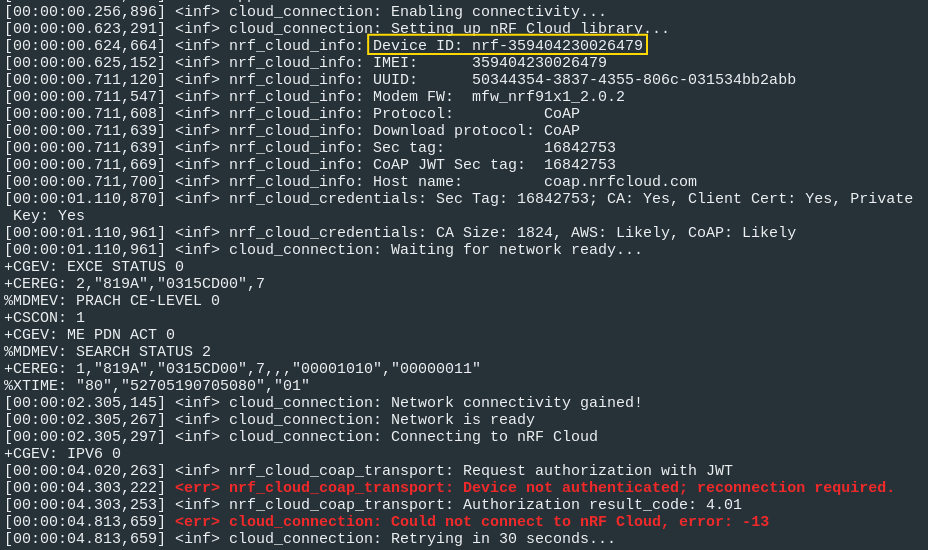
You need to verify if this matches the Device ID used to onboard the device in nRF Cloud.
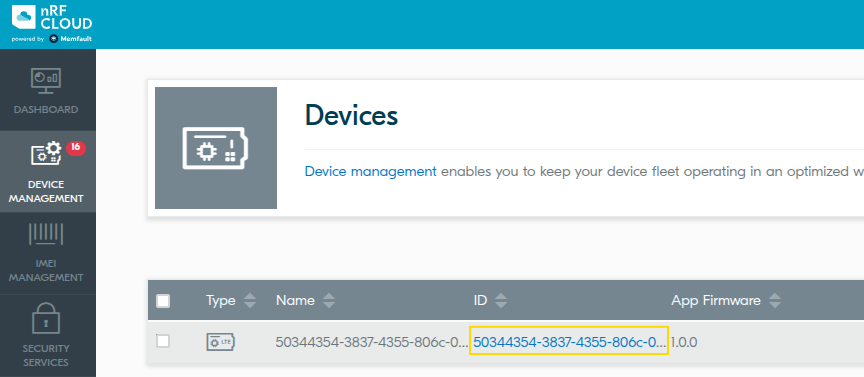
In this case, the device ID in the firmware is different from the one used in nRF Cloud. When the device was onboarded, the UUID was used as the Device ID. This mismatch is causing the connection to be refused.
Solution
There are two ways to re-match these device IDs:
-
Use IMEI as device ID in nRF Cloud.
- Delete the device from nRF Cloud.
- Onboard it again using
nRF Cloud Utils. Follow the
instructions in the
How-To: Registering devices quickly
section. Use the
nRF-IMEI command
when running the
device_credentials_installerscript.
-
Use UUID as device ID in the firmware.
-
In your
proj.conffile, ensure the following Kconfig variables are set in this way:CONFIG_NRF_CLOUD_CLIENT_ID_SRC_IMEI=nCONFIG_NRF_CLOUD_CLIENT_ID_SRC_INTERNAL_UUID=y -
Compile and flash your firmware.
-
Delete the device from nRF Cloud.
-
Onboard it again using nRF Cloud Utils. Follow the instructions in the How-To: Registering devices quickly section. Use the UUID command when running the
device_credentials_installerscript.
-
Error 40100 when trying to connect to nRF Cloud using REST
The following image shows that the Device ID reported uses the modem's UUID. This indicates that the UUID has been configured as the device ID in the firmware project.
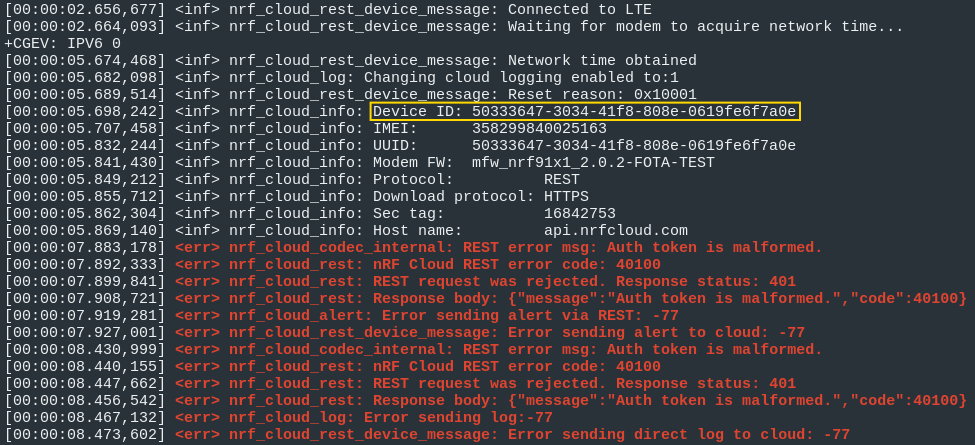
Check if this matches the Device ID used to onboard the device in nRF Cloud.
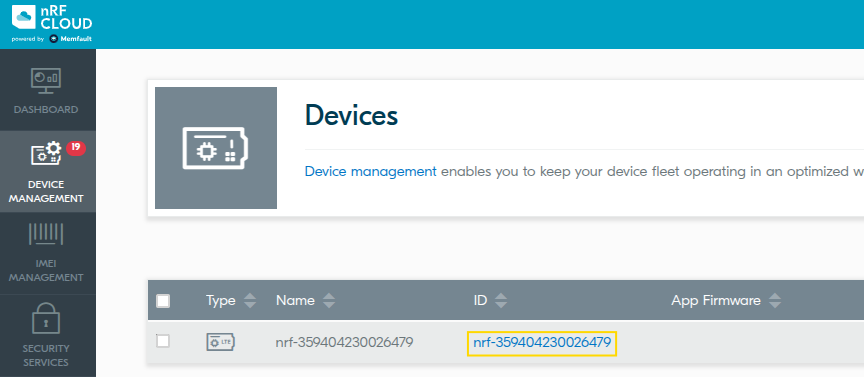
In this case, the device ID in the firmware is different from the one used in nRF Cloud. When the device was onboarded, the IMEI was used as the Device ID. This mismatch is causing the connection to be refused.
Solution
There are two ways to re-match these device IDs:
-
Use UUID as device ID in nRF Cloud.
- Delete the device from nRF Cloud.
- Onboard it again using
nRF Cloud Utils. Follow the
instructions in the
How-To: Registering devices quickly
section. Use the
UUID command
when running the
device_credentials_installerscript.
-
Use IMEI as device ID in the firmware.
-
In your proj.conf make sure the next kconfig variables are set in this way:
CONFIG_NRF_CLOUD_CLIENT_ID_SRC_IMEI=yCONFIG_NRF_CLOUD_CLIENT_ID_SRC_INTERNAL_UUID=n -
Compile and flash your firmware.
-
Delete the device from nRF Cloud.
-
Onboard it again using nRF Cloud Utils. Follow the instructions in the How-To: Registering devices quickly section. Use the nRF-IMEI command when running the
device_credentials_installerscript.
-
Wrong certificate
To connect to nRF Cloud, your device needs the correct certificate installed in its modem. The required certificate depends on the communication protocol your project uses. nRF Cloud supports CoAP, MQTT, and REST, but they do not all share the same certificate. MQTT uses AWS' Root CA, while REST and CoAP use nRF Cloud server certificates.
Warning "Required root CA certificate is missing" in CoAP-based project
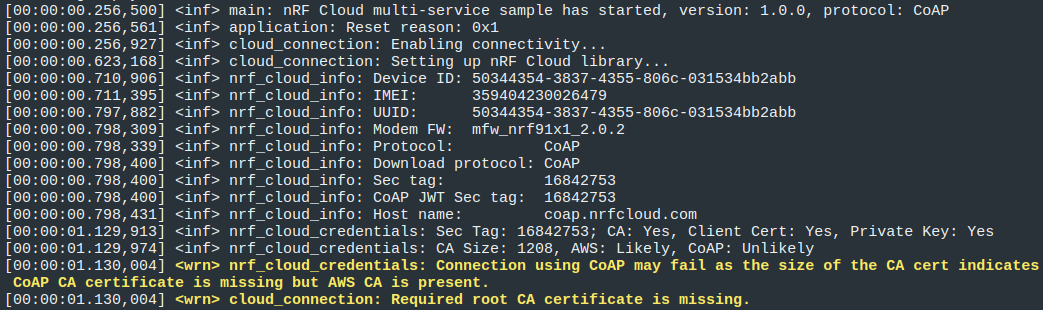
The logging messages in the image above explicitly state that you might be using a wrong root CA. This is indicated by the unexpected certificate size, as CoAP's root CA is smaller than AWS' root CA.
Solution
Follow the instructions in the How-To: Registering devices quickly section.
Also, consider the following:
- Use the same Device ID configured in your firmware when running the
device_credentials_installerscript. - If your project uses CoAP or REST, include the
--coapas a parameter indevice_credentials_installer. - If your project uses CoAP or REST with FOTA or P-GPS, you will need both certificates, as these features use HTTPS.
- Always onboard your device again. Run the
nrf_cloud_onboardscript as described in the instructions.
In case your project uses MQTT, you can skip adding --coap. However, it will
not cause any issues if you decide to include it during development. This gives
you the flexibility to test both protocols without worrying about certificate
mismatches.