New FOTA Experience
nRF Cloud now uses Memfault's OTA engine to deliver firmware over-the-air (FOTA)
updates. For application (app) updates, your devices keep working just as
they do today — no firmware or SDK changes needed. All that changes is how you
prepare and deploy an update.
This guide covers application FOTA. For modem firmware, jump to Modem and other firmware types.
What stays the same
For application FOTA, nothing changes on the device side:
- No firmware rebuild and no SDK upgrade.
- The same device protocols (CoAP, REST, and MQTT) and the same device authentication.
- Your devices download and apply updates the same way they do today.
New capabilities
The new experience adds fleet-scale release management capabilities, including:
- Staged rollouts — Release to a fraction of a cohort first, monitor, then expand to the full fleet. See Staged Rollout of a Release.
- Approval workflows — Gate a Release activation behind an explicit approval before it reaches production devices. See Requiring Approvals for Release Activations.
- Audit logs — See who changed what and when across your project, including release and deployment actions. See Audit Log.
- SBOM management — Upload and manage a Software Bill of Materials per software version for vulnerability tracking and compliance. See SBOM.
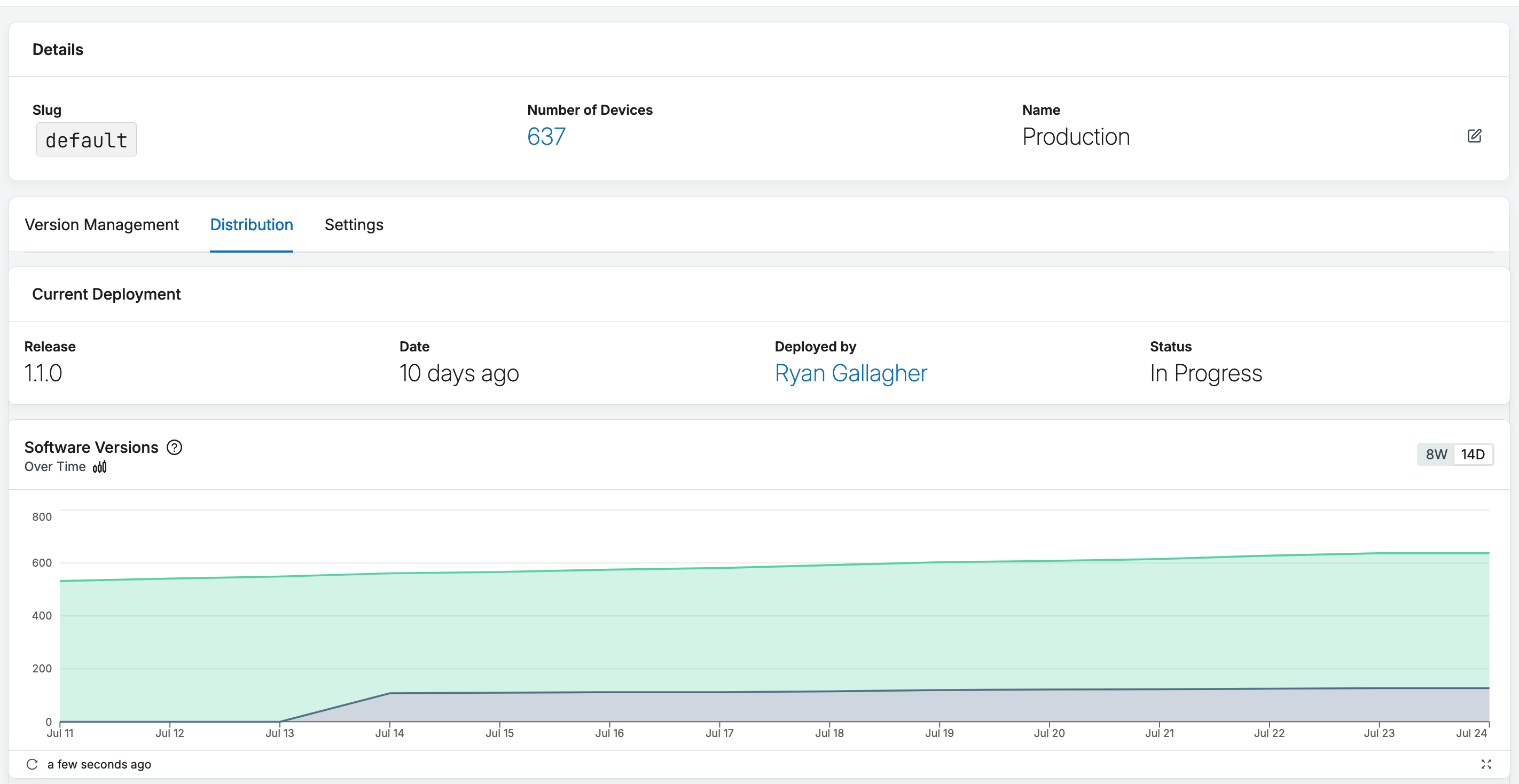
- Fleet-wide OTA update adoption — Track how new firmware versions propagate across your fleet over time with the Software Versions Chart, and see the exact next update each device will receive in the version matrix.
What changes for you
You now work with the following OTA model instead of legacy nRF Cloud bundles and jobs:
| Legacy nRF Cloud | New nRF Cloud experience |
|---|---|
| Firmware bundle | Release with OTA Payloads |
| FOTA job | Deployment for activating a release |
| Device group / tag | Cohort can be used for targeting groups of devices |
| Per-device job execution status | Per-cohort version matrix |
See Over-the-Air Updates (OTA) for the full OTA model.
Deploying your first release
Collect Version Information
When you create a Release in the new nRF Cloud experience, three fields have to match your device — otherwise it won't be offered the update:
-
Software Type — set it to
app. Only theappsoftware type gets application FOTA. -
Hardware Version — match your device's board exactly. Use the board name your firmware is built for (
CONFIG_BOARD, for examplethingy91x), which is the same value the device reports as itsboard. -
Software Version — must match exactly what the device reports. Where that value comes from depends on the sample and nRF Connect SDK version you build against:
- Newer applications take it from the project's
VERSIONfile:VERSION_MAJOR.VERSION_MINOR.PATCHLEVEL(add-EXTRAVERSIONif you are using that argument as well). - Older applications and samples set it with
CONFIG_APP_VERSIONinprj.confor a Kconfig overlay.
If you are not sure which one applies to your application, don't guess: use the Software Version the device itself reports on its Device Details page in nRF Cloud, and bump from there.
- Newer applications take it from the project's
Your device says which version it's running and the nRF Cloud OTA engine looks at the releases active for that device's cohort to decide whether an update is available based on that info.
That's also why the version you type into the Release has to be the version the
device will actually report. Upload a binary as 1.1.0 and it still says
1.0.0 after it boots, and nRF Cloud has no way to tell the update applied, so
the same OTA payload would be sent to the device again.
Create a Release
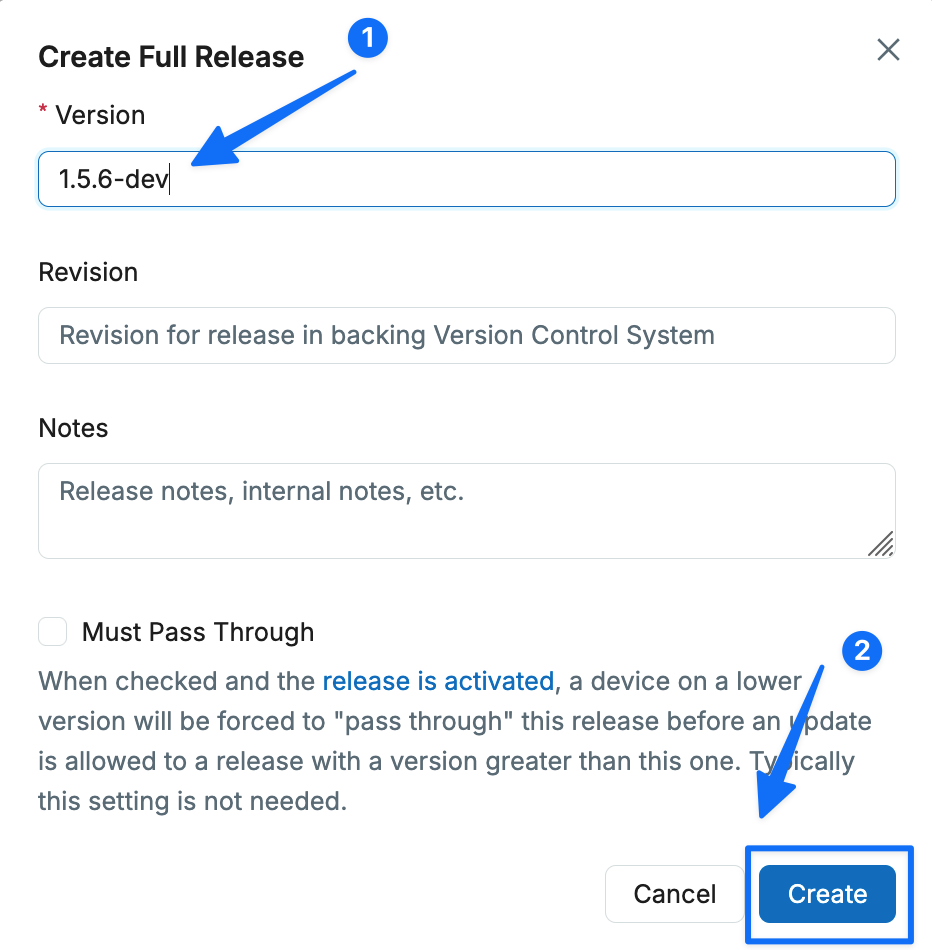
Navigate to OTA Release -> Create Release and create your release.
For example, with the following info in your VERSION file
VERSION_MAJOR = 1
VERSION_MINOR = 5
PATCHLEVEL = 6
VERSION_TWEAK = 0
EXTRAVERSION = dev
This is what should be populated in the UI:
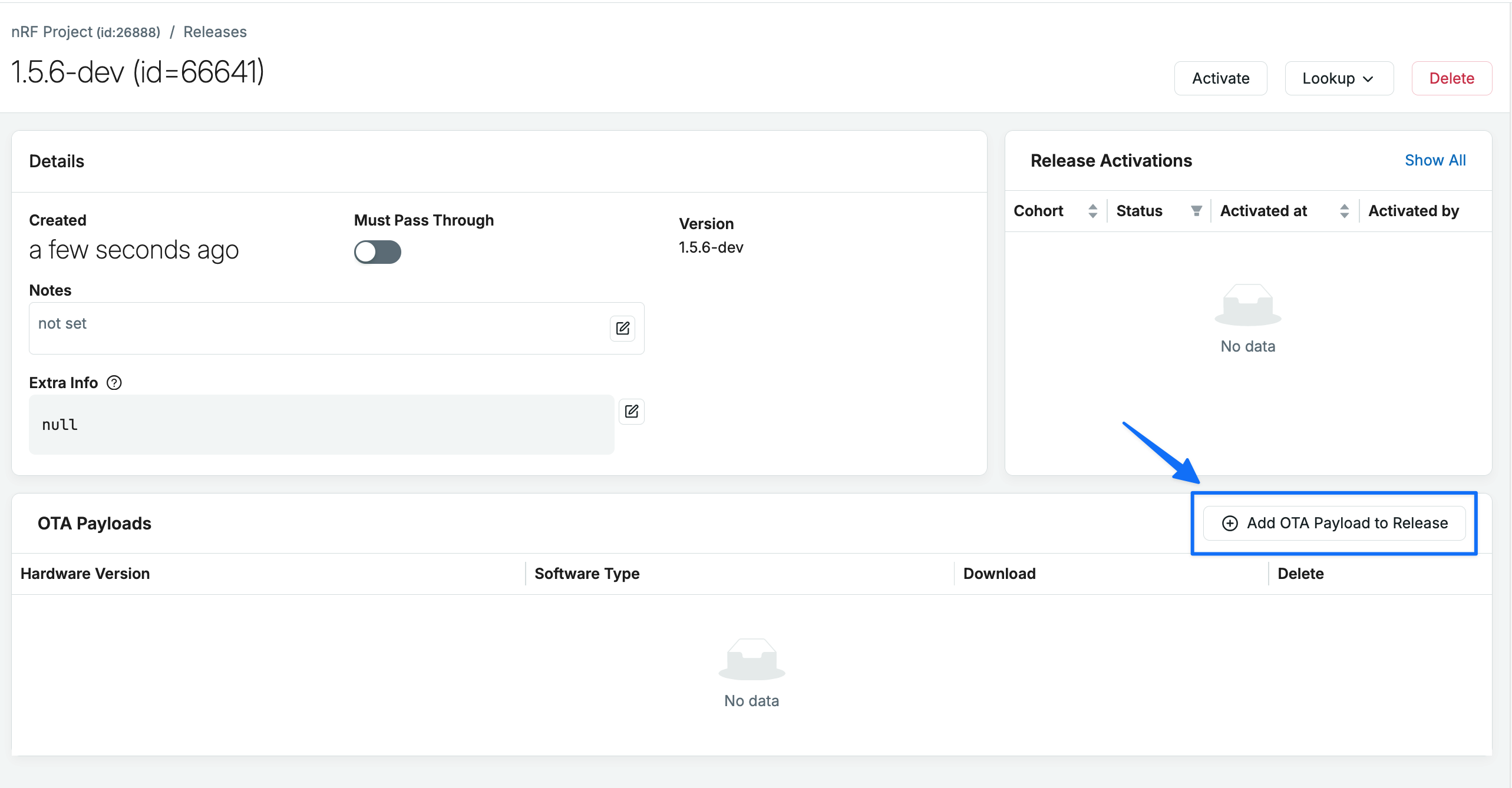
Add OTA payload to the Release
Next, upload the firmware binary (.bin) by clicking "Add OTA payload":
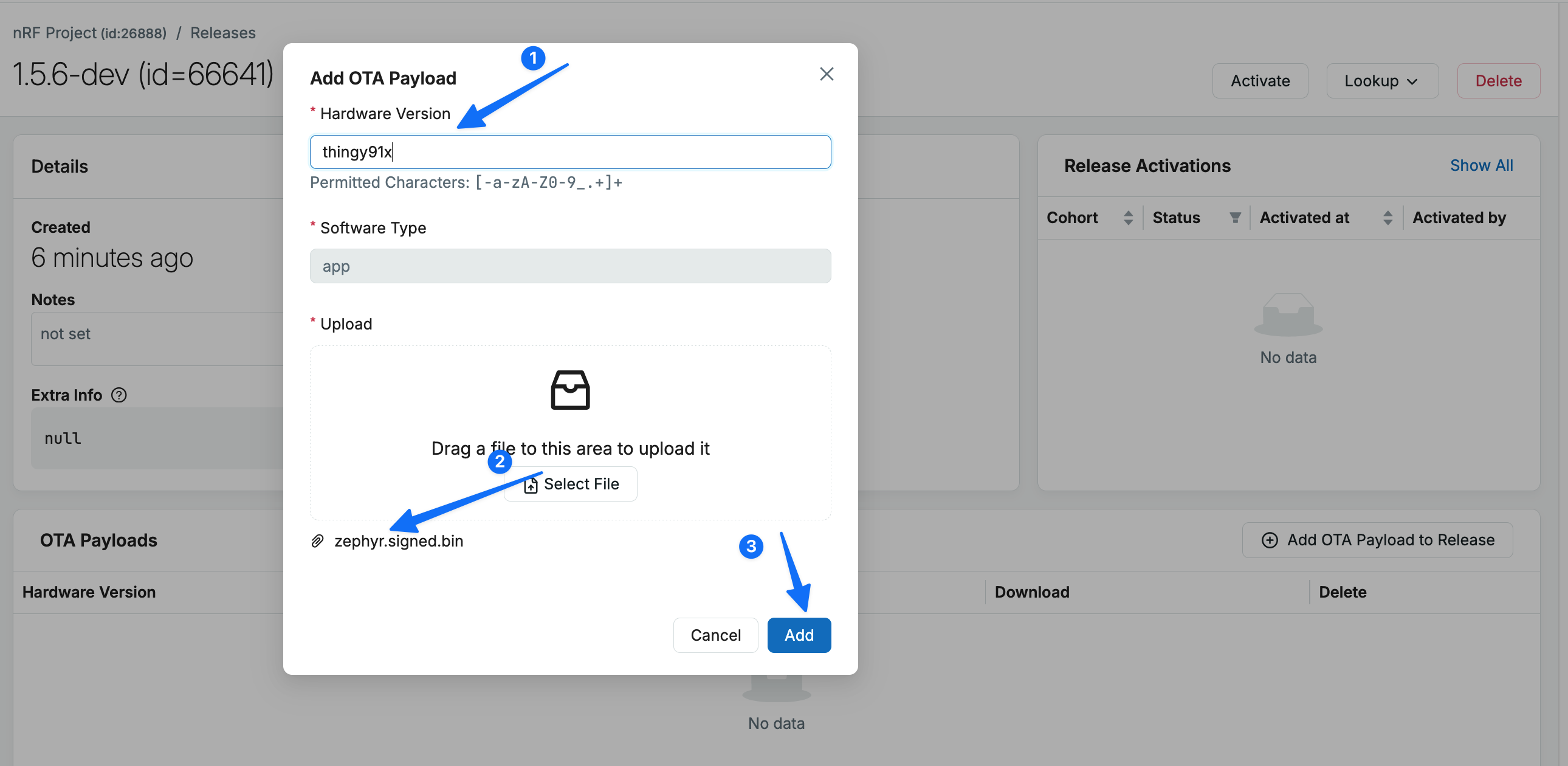
Ensure the "Hardware Version" you enter matches what you have set for
CONFIG_BOARD and that you are selecting the correct .bin to update to.
The binary is located in your application's build/ directory, typically at a
location like build/app/zephyr/zephyr.signed.bin
CONFIG_BOARD setting can also be found in the build folder as well, typically
build/app/zephyr/.config:
...
CONFIG_BOARD="thingy91x"
...
Enter the Hardware Version (1), select the firmware binary (2), then click "Add" to upload it (3):
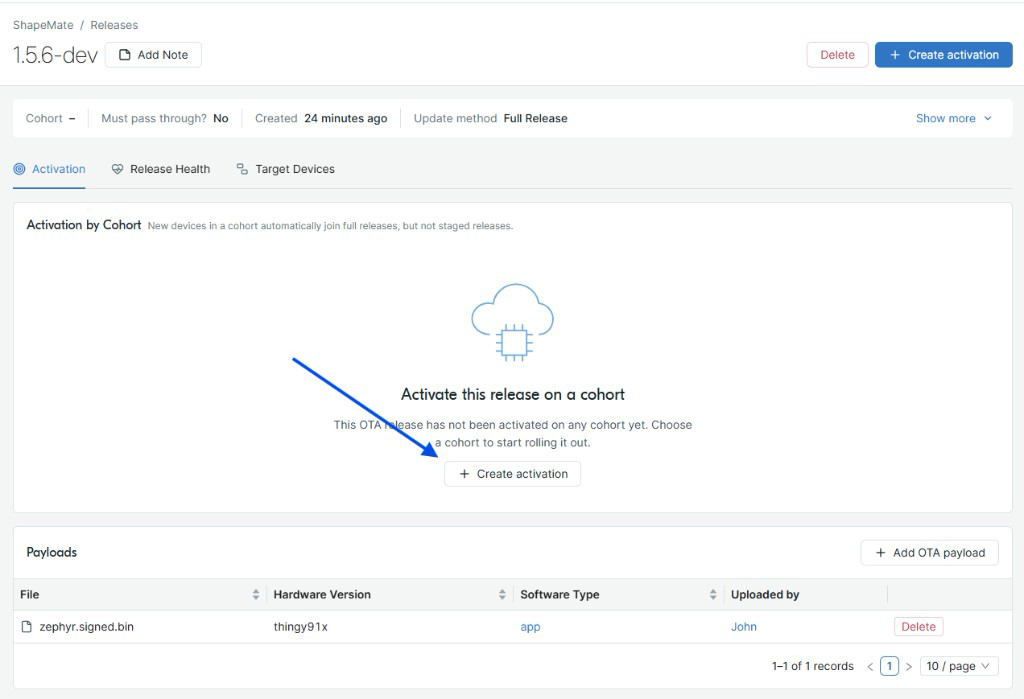
Activate the Release
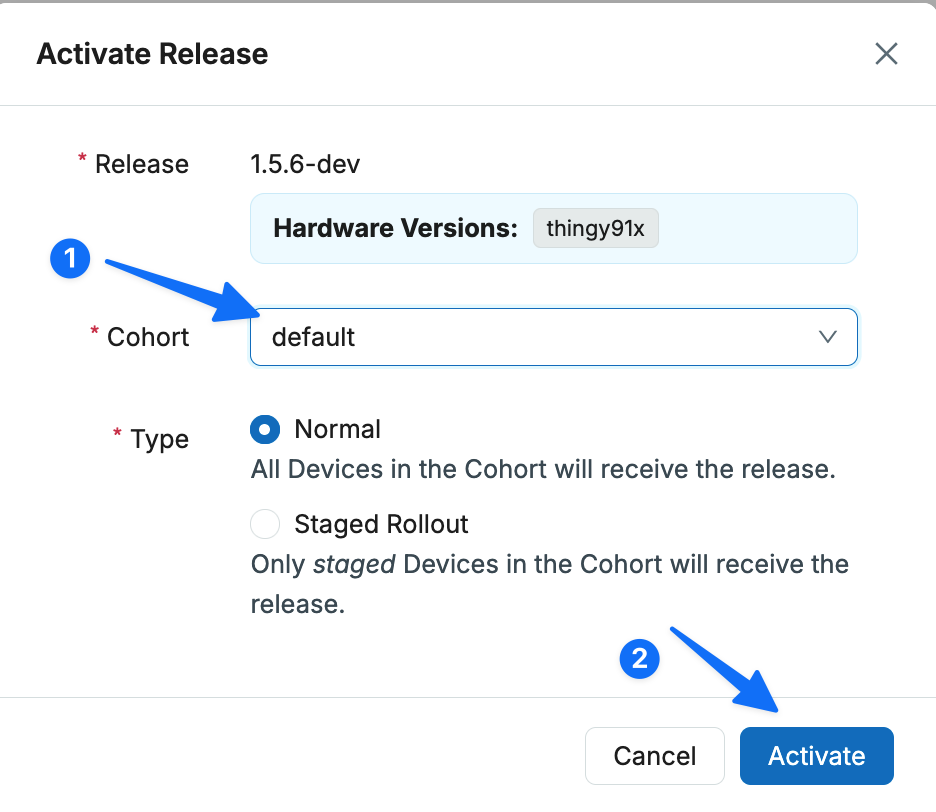
To deploy the release to your fleet, click "Create activation".
Select the type of release you want. For testing an OTA on a single device, choose "Normal". For deploying to a large fleet, select "Staged Rollout" and select the percent of devices you would like to target.
All devices onboard into the "default" cohort and each device belongs to exactly one cohort at a time (unlike legacy nRF Cloud groups). To create custom cohorts and manage which devices are in each cohort, see Cohorts.
Celebrate 🎉
Your update has been successfully deployed. The next time a device checks in with nRF Cloud's FOTA service, it will receive the update.
Release progress and adoption can be tracked from the Cohort details page:
How to configure for automated testing
Each device may check for a new Release up to 100 times per 24-hour period. That is ample for production devices, but some nRF Connect SDK samples poll much more aggressively (as often as every minute, including while an update is already downloading), which can exhaust the daily budget in a couple of hours. Once the limit is reached, further checks are rejected until the window resets, which looks like a device that has quietly stopped receiving updates.
While developing or testing, enable Server-Side Developer Mode on the device from its Device Details page. This bypasses the rate limits so repeated OTA checks keep working.
For production firmware, check no more often than your update cadence actually requires (typically a few times a day to conserve bandwidth and power).
How to Automate
To upload releases as part of your CI process the Memfault CLI can be used, e.g
memfault --org-token YOUR_ORG_TOKEN \
  --org YOUR_ORG --project YOUR_PROJECT \
  upload-ota-payload \
  --hardware-version nrf9151dk \
  --software-type app \
  --software-version 1.2.3 \
  build/app/zephyr/zephyr.signed.bin
Advanced OTA configuration
This guide covers the essentials of getting an application update to your fleet. The underlying OTA engine supports much more — staged rollouts, approval workflows, multiple cohorts, delta releases, downgrade control, release overrides, and the full version matrix.
For more context around all OTA capabilities, see Over-the-Air Updates (OTA).
Frequently asked questions
What about modem and other firmware types?
Only application (app) firmware uses the path above. Modem firmware updates
through a separate project in the new nRF Cloud experience using the Memfault
SDK. See Modem Firmware Update (FOTA). Devices with
several updatable components can also bundle them with
multi-component OTA.
How do MQTT devices find out about a new Release?
By default, the nRF Cloud MQTT library checks for an update each time the device connects to nRF Cloud. Unlike legacy FOTA jobs, nRF Cloud does not push a notification to connected devices when a new Release is activated.
To check more often while the device stays connected, call
nrf_cloud_fota_update_check() periodically from your application, for example
from a delayable work item:
#include <nrf_cloud_fota.h>

static void fota_check_work_fn(struct k_work *work);
static K_WORK_DELAYABLE_DEFINE(fota_check_work, fota_check_work_fn);

static void fota_check_work_fn(struct k_work *work)
{
	if (!nrf_cloud_fota_is_active()) {
		(void)nrf_cloud_fota_update_check();
	}

	k_work_schedule(&fota_check_work, K_HOURS(1));
}
Start the work item after the NRF_CLOUD_EVT_READY event. Pick an interval that
stays well within the
daily update check limit.
You can also trigger a check right away without changing firmware by rebooting the device, since it checks for an update when it reconnects.
Troubleshooting
| Symptom | Likely cause |
|---|---|
| Update never offered to the device | Hardware Version doesn't match the device's board (CONFIG_BOARD) — the most common cause |
| Release created but no devices update | Release hasn't been activated — activate it on the device's cohort ("OTA Releases" → "Create activation") |
| Some devices update but others don't | Devices are in a different cohort than the one the Release was activated on; check each device's cohort |
| Device reports the wrong version after downloading | Verify the software_version reported by the device matches what was uploaded; Inspect details on the device details page shows exactly what nRF Cloud is sending |
| Device downloads the same update over and over | The version in the Release doesn't match the version the device reports. Check whether the application's version comes from the VERSION file or CONFIG_APP_VERSION (see Collect Version Information) |
| Update checks stop working after heavy testing | The device hit the limit of 100 update checks per 24 hours; enable Server-Side Developer Mode while testing |
Questions or Feedback?
Reach out to us on the DevZone community forum.