Nordic Serial Modem Quickstart (nRF91 Series)
This quickstart guide shows how to verify an nRF Cloud integration on a Nordic nRF91 series SiP running the Serial Modem application. The Serial Modem application exposes the nRF91 modem to a host device over a UART using AT commands.
Create your nRF Cloud account
Register for an nRF Cloud account to get started. Once registered, select your Nordic chip variant and a Project will be automatically created for you.
Already have an nRF Cloud account without Memfault access? Create a new account or contact us for support.
Next, to perform a modem firmware update later in the quickstart, we will create a second project to deliver the FOTA. In the upper left in nRF Cloud, open the Project selection drop down, and select "Create Project". Select "Other MCU" and name the project "Modem Project".
Set up your environment
Initialize a new west workspace, with the v2.0.0 tag of the
Serial Modem Application
as your manifest repository:
mkdir ncs-serial-modem-workspace && cd ncs-serial-modem-workspace
west init -m https://github.com/nrfconnect/ncs-serial-modem --mr v2.0.0
west update
Build and Flash
Perform a full rebuild of the project and flash the board. This example builds the Serial Modem application targeting the nRF9151 DK.
west build --pristine=always --board nrf9151dk/nrf9151/ns ncs-serial-modem/app -- \
-DEXTRA_CONF_FILE="nrf-device-provisioning.conf" \
-DCONFIG_SM_NRF_CLOUD_OBSERVABILITY_DEBUG=y
The nrf-device-provisioning.conf overlay enables the nRF Cloud provisioning
client, which installs the device's nRF Cloud credentials later in this
quickstart.
Then, flash your DK:
west flash --erase
If you encounter configuration or other build errors, please contact us!
Hello, nRF Cloud
-
Upload the
build/app/zephyr/zephyr.elffile to nRF Cloud by navigating to Software → Symbol Files, and clicking the "Upload Symbol File" button.tipIf there are code changes, make sure to always upload the Symbol file before sending data to nRF Cloud.
-
Open a serial terminal app where you can send commands, such as the Serial Terminal bundled with nRF Connect for Desktop.
-
Confirm the modem is registered on the LTE network. Send
AT+CFUN=1, then check the registration status withAT+CEREG?. A status of1(registered, home) or5(registered, roaming) means the modem is registered. For example:> AT+CEREG?+CEREG: 0,5 # registered, roamingOKor:
> AT+CEREG?+CEREG: 0,1 # registered, homeOKtipIf you're not able to register with the network, reset the modem status with:
AT+CFUN=0followed byAT+CFUN=1. Then, recheck network registration status withAT+CEREG?. Still having issues? See Troubleshooting. -
Once the modem is connected, print the attestation token:
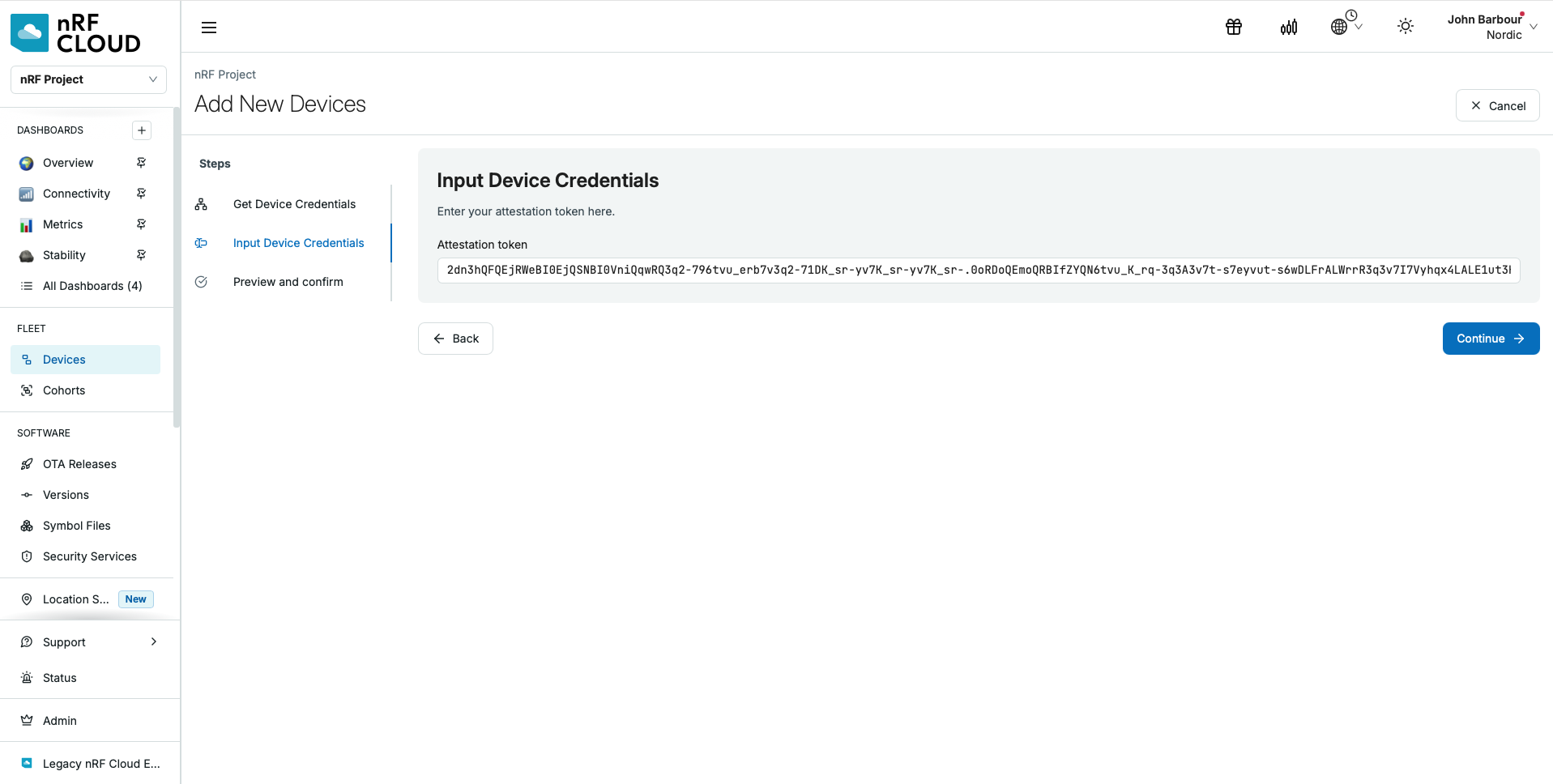
> AT%ATTESTTOKEN%ATTESTTOKEN: "<token>"OKClaim the device in nRF Cloud by going to Devices > Add devices and entering the token. See Device Onboarding for more details.
-
Once the device is claimed, provision it with its nRF Cloud credentials:
> AT#XNRFPROVOKTo write the credentials, the device needs the modem taken offline and then brought back online. It requests each step with an unsolicited
#XNRFPROVnotification. Respond with the matching command:#XNRFPROV: 1 # host action required: deactivate LTE> AT+CFUN=4OK#XNRFPROV: 2 # host action required: activate LTE> AT+CFUN=1OK#XNRFPROV: 0 # provisioning completeAfter provisioning completes, the device may check the server for commands once more and send a second
#XNRFPROV: 0. Wait for it before continuing.tipThe device waits up to 120 seconds for each
AT+CFUNcommand, so respond promptly. If you receive#XNRFPROV: -2, the device is not claimed yet. Repeat the previous step. If you receive#XNRFPROV: -4, the modem has no valid network time: confirm it is registered withAT+CEREG?, then sendAT#XNRFPROVagain. For the other status codes, see the provisioning AT command reference. -
Next, establish a connection with nRF Cloud:
> AT#XNRFCLOUD=1OK#XNRFCLOUD: 1,0 # unsolicited response confirming connectionYou can request a connection status with:
> AT#XNRFCLOUD?#XNRFCLOUD: 1,0,16842753,"50344654-3037-4f89-809b-1810f870fb69" # connectedOKtipIf you're not able to connect to nRF Cloud, your network registration might need to be reset. Reset the modem status with
AT+CFUN=0followed byAT+CFUN=1. Then, recheck network registration status withAT+CEREG?, and reconnect to nRF Cloud withAT#XNRFCLOUD=1. Still having issues? See Troubleshooting. -
Once connected, send the available data:
> AT#XNRFCLOUDOBSUPLOADOK#XNRFCLOUDOBSUPLOAD: 0,2326 # upload successful -
In nRF Cloud, navigate to Processing Log and look for the reboot event that was just uploaded.
Congrats, you've just uploaded your first piece of data to nRF Cloud! 🎉
Application FOTA
-
Perform a check on the device, demonstrating an application release is not yet available:
> AT#XNRFCLOUDFOTA=4OK#XNRFCLOUDFOTA: 0,0,0 # no release available -
Rebuild the application with a newer version by updating the
VERSIONfile atncs-serial-modem/app/VERSIONand re-running the previouswest buildcommand. Do not flash this build: it will be delivered over the air. -
Upload the new
build/app/zephyr/zephyr.elfas a symbol file, as before. -
Create a Full Release on the OTA Releases page with Software Type
app, Hardware Versionnrf9151dk, and the exact Software Version produced by the updatedVERSIONfile. -
Upload
build/app/zephyr/zephyr.signed.binas the release payload. -
Create an Activation for the
defaultcohort. -
On the device, check that update is available:
AT#XNRFCLOUDFOTA=4OK#XNRFCLOUDFOTA: 0,0,1 # release is available -
Now, start the application update, which downloads the release:
AT#XNRFCLOUDFOTA=1...#XNRFCLOUDFOTA: 1,0,100 # download complete -
Wait for an unsolicited response of
#XNRFCLOUDFOTA: 4,0, indicating the FOTA has been staged, then reset the device to apply the update:AT#XRESET// device reboots -
Finally, confirm that the new application version applied:
> AT#XNRFCLOUDOBSDEVINFO#XNRFCLOUDOBSDEVINFO: "50344654-3037-4f89-809b-1810f870fb69","app","<new-version>","nrf9151dk"
Modem FOTA
Next, we will trigger a modem firmware update.
-
Copy the Modem Project's Project Key- this is required for the AT commands that check for and initiate modem firmware updates.
-
Perform a check on the device, demonstrating a modem firmware release is not yet available:
AT#XNRFCLOUDFOTA=6,"YOUR_MODEM_PROJECT_KEY"OK#XNRFCLOUDFOTA: 0,0,0 # modem firmware is up-to-date -
Before upgrading, we will need to downgrade the modem firmware version. Download the
v2.0.3modem firmware bundle from nRF9151 Downloads. Then, using nRF Util, downgrade the firmware:# get your device serial number❯ nrfutil device list1051297113 <-- device serial to copy...# install the "91" nrfutil command if not already installed❯ nrfutil install 91# perform the modem downgrade❯ nrfutil 91 modem-firmware-upgrade --firmware ~/Downloads/mfw_nrf91x1_2.0.3.zip --verify --serial-number YOUR_DK_SERIAL_NUMBER -
Download the
v2.0.4modem firmware bundle from nRF9151 Downloads. The delta update binary for the version you are upgrading to is inside that.zipfile. For example,mfw_nrf91x1_update_from_2.0.3_to_2.0.4.binis in the2.0.4.zipfile. -
In the Modem Project you created earlier, create a Delta Release to enforce delivery of a payload from exactly the current modem firmware to exactly the newer one (
mfw_nrf91x1_2.0.3tomfw_nrf91x1_2.0.4), and upload the delta update binary as the release payload. -
Finally, activate the release like before on your chosen Cohort.
-
On the device, check that an update is available:
AT#XNRFCLOUDFOTA=6,"YOUR_MODEM_PROJECT_KEY"OK#XNRFCLOUDFOTA: 0,0,1 # release is available -
Now, start the modem firmware update, which downloads the release:
AT#XNRFCLOUDFOTA=2,"YOUR_MODEM_PROJECT_KEY"...#XNRFCLOUDFOTA: 1,0,100 # download complete -
Wait for an unsolicited response of
#XNRFCLOUDFOTA: 4,0, indicating the FOTA has been staged, then reset the modem to apply the update:AT#XMODEMRESET
Celebrate, you've completed an application and modem update over-the-air with nRF Cloud! 🎉
Next Steps
Now that the Memfault SDK is integrated on your device, there are many other features and options to explore. Check out these sections of our docs for more information:
Troubleshooting
The Serial Modem application can send its logs over either UART or RTT, which helps with diagnosing connection issues.
UART
- Keep the AT-command serial terminal from the previous steps open, and open a
second terminal on UART1 (VCOM1 on the nRF9151 DK) at a baud rate of
1000000to receive logs. - In the AT-command terminal, send
AT#XLOG=1. Logs will appear in the UART1 terminal.
RTT
First, rebuild the application with RTT logging enabled:
west build --pristine=always --board nrf9151dk/nrf9151/ns ncs-serial-modem/app -- \
  -DEXTRA_CONF_FILE="nrf-device-provisioning.conf" \
  -DCONFIG_SM_NRF_CLOUD_OBSERVABILITY_DEBUG=y \
  -DCONFIG_USE_SEGGER_RTT=y \
  -DCONFIG_RTT_CONSOLE=y \
  -DCONFIG_LOG_BACKEND_RTT=y \
  -DCONFIG_UART_CONSOLE=n \
  -DCONFIG_LOG_BACKEND_UART=n \
  -DCONFIG_SEGGER_RTT_BUFFER_SIZE_UP=2048
Flash the device again with west flash --erase, then open a J-Link session:
JLinkExe -device NRF9151_XXCA -if SWD -speed 4000 -autoconnect 1
In a separate terminal, start the J-Link RTT client, which connects to the RTT server on port 19021:
JLinkRTTClient
...
###RTT Client: Connecting to J-Link RTT Server via localhost:19021 ...
###RTT Client: Connected.

SEGGER J-Link V9.82 - Real time terminal output
SEGGER J-Link (unknown) V1.0, SN=1051297113
Process: JLinkExe
[00:00:00.259,155] <inf> fs_nvs: 2 Sectors of 4096 bytes
[00:00:00.259,185] <inf> fs_nvs: alloc wra: 0, fe8
[00:00:00.259,185] <inf> fs_nvs: data wra: 0, 0
[00:00:00.259,796] <inf> sm_uart_handler: UART baud: 115200 d/p/s-bits: 3/0/1 HWFC: 1
[00:00:00.259,918] <inf> sm_at_host: Created AT host ctx=0x2001e5f8 pipe=0x2000fbe4
[00:00:00.260,101] <inf> sm_at_host: AT host init done
*** Booting Serial Modem v1.99.2-e61f10694e34 ***
*** Using nRF Connect SDK v3.5.0-preview2-8b65ab0fb670 ***
*** Using Zephyr OS v4.4.99-91a6c63b7607 ***
[00:00:00.261,138] <inf> at_cmd_custom: Custom AT commands enabled with 64 entries.
[00:00:00.261,230] <inf> mflt: Reset Reason, HWINFO=0x0003
[00:00:00.261,291] <inf> mflt: Reset Cause: Software Reset
[00:00:00.261,383] <inf> mflt: Reset Cause Stored: 0x0008
[00:00:00.262,390] <inf> mflt: GNU Build ID: 2e52183aec1504d6187a298741aff722c57daa5b
[00:00:00.262,420] <inf> sm: Reset reason: 0x00000000
[00:00:00.527,282] <inf> sm: lib_modem init: 0
Run commands in your serial terminal as before, and check the RTT output for clues. If you are still unable to connect, contact us and attach the log output.