nRF91 Series Onboarding
nRF Cloud securely verifies nRF9151 and nRF9161 devices against their Nordic Identity, a cryptographic identity injected into the chip during manufacturing and protected by a hardware root of trust.
Because that identity lives in silicon, you never handle private keys during production. After nRF Cloud verifies a device's identity attestation token, the device can establish its cloud credentials over the air.
For other device families and onboarding methods, see Device Onboarding.
Before you begin
- Supported hardware: nRF9151 and nRF9161.
- Account: An nRF Cloud account with access to your organization's default project. Device identity operations are not supported in non-default projects.
- Device firmware: The device must run firmware that includes the nRF Cloud provisioning client. The provisioning client is not enabled by default. See Device firmware requirements.
- What you need: The device's identity attestation token, which you can read
from a single device by running
AT%ATTESTTOKEN.
Device firmware requirements
Adding a device in nRF Cloud registers its identity, but the credentials themselves are established by the device. When it connects, it retrieves and executes its provisioning commands. It generates its own key pair inside the modem, so the private key never leaves the device, and installs the certificates issued by nRF Cloud.
This work is done by the
nRF Cloud provisioning client
in the nRF Connect SDK. Enable CONFIG_NRF_PROVISIONING and configure it as
described in the
library documentation.
For new designs, start with the Asset Tracker Template (source). It already enables the provisioning client with a working configuration.
For a focused look at the client, build the nRF Device provisioning sample.
How secure onboarding works
When you onboard a device, nRF Cloud uses its attestation token to verify that the device is genuine Nordic silicon and claim it for your project. The provisioning client then generates a key pair inside the modem and installs the certificates issued by nRF Cloud.
Add a device
The following steps add one device at a time. To onboard multiple devices programmatically, use the Create nRF9x Devices in Bulk REST API endpoint.
-
In nRF Cloud, go to Fleet → Devices.
-
Select Add devices.
-
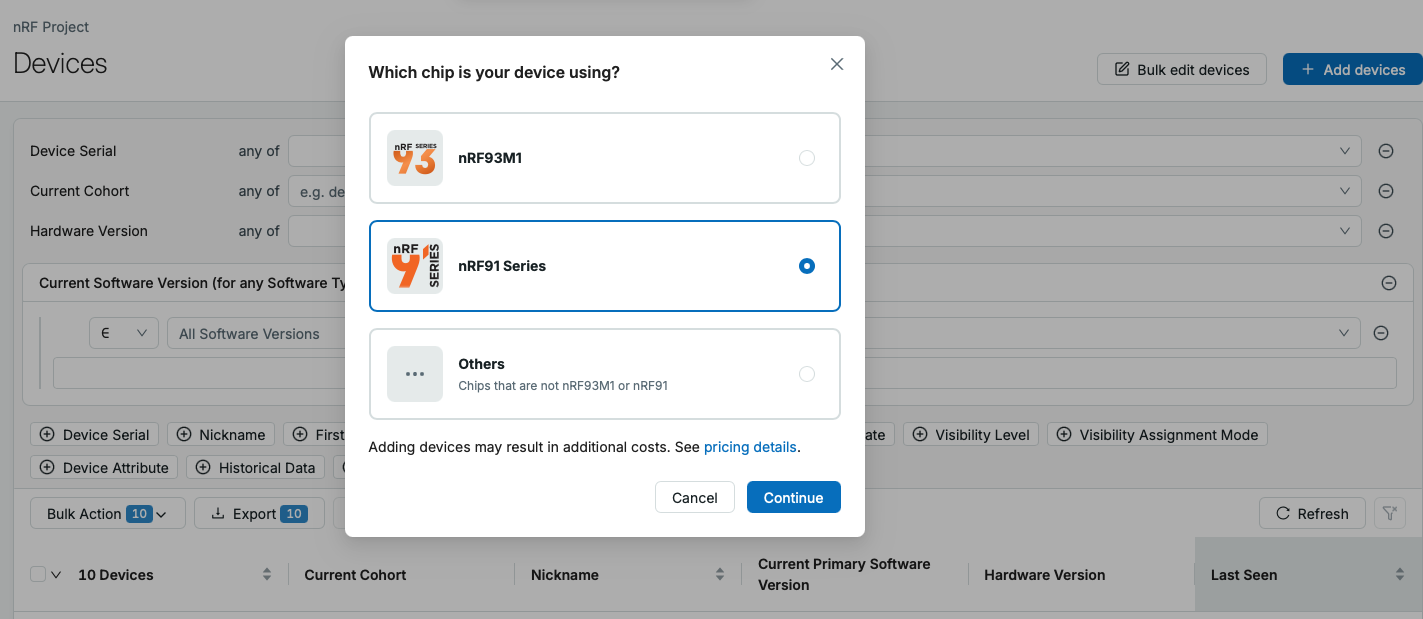
Select nRF91 Series.
-
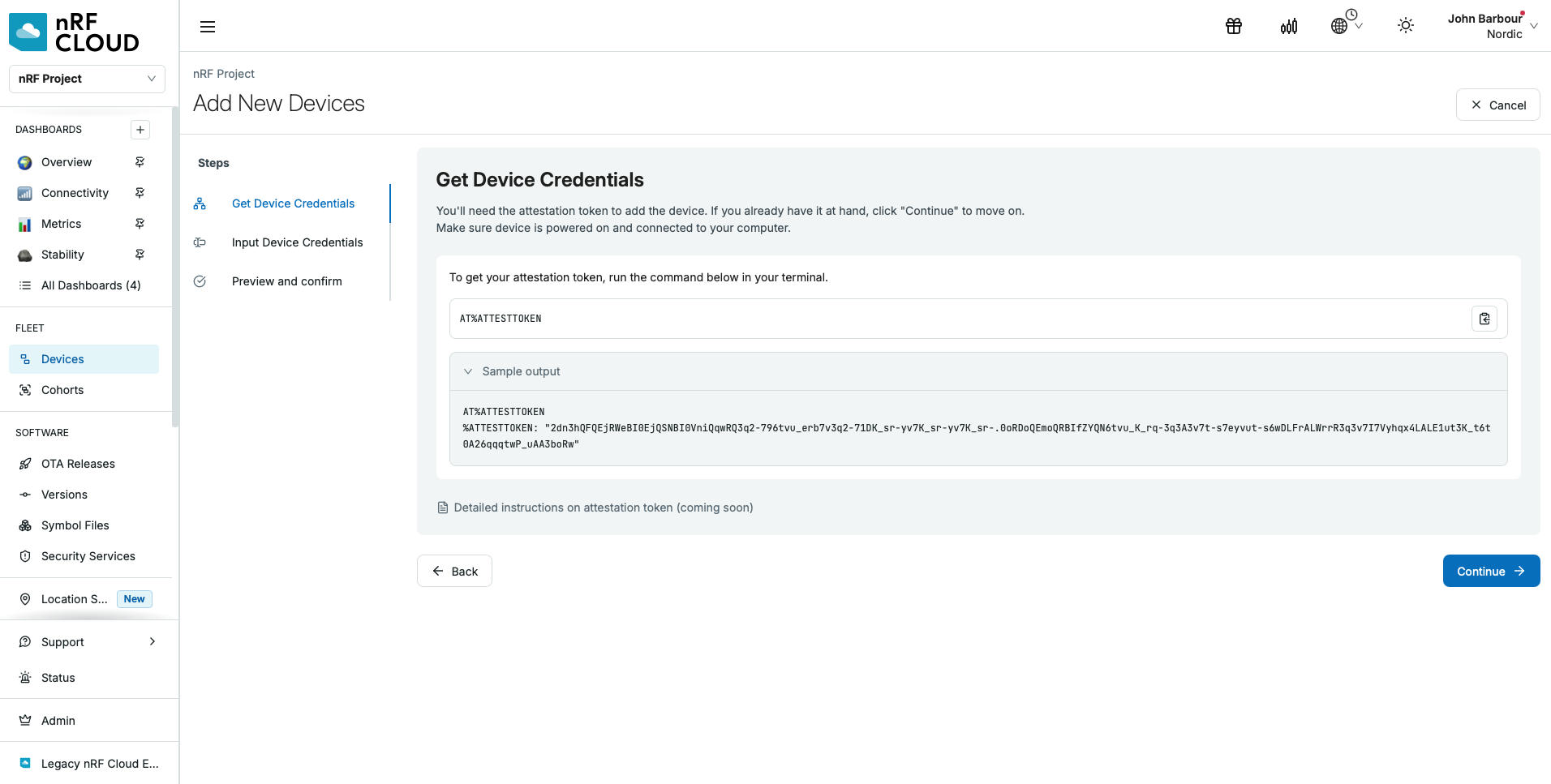
Run
AT%ATTESTTOKENon your nRF9151 or nRF9161. The device returns its attestation token:%ATTESTTOKEN: "your attestation token here"Copy the token from your device.
-
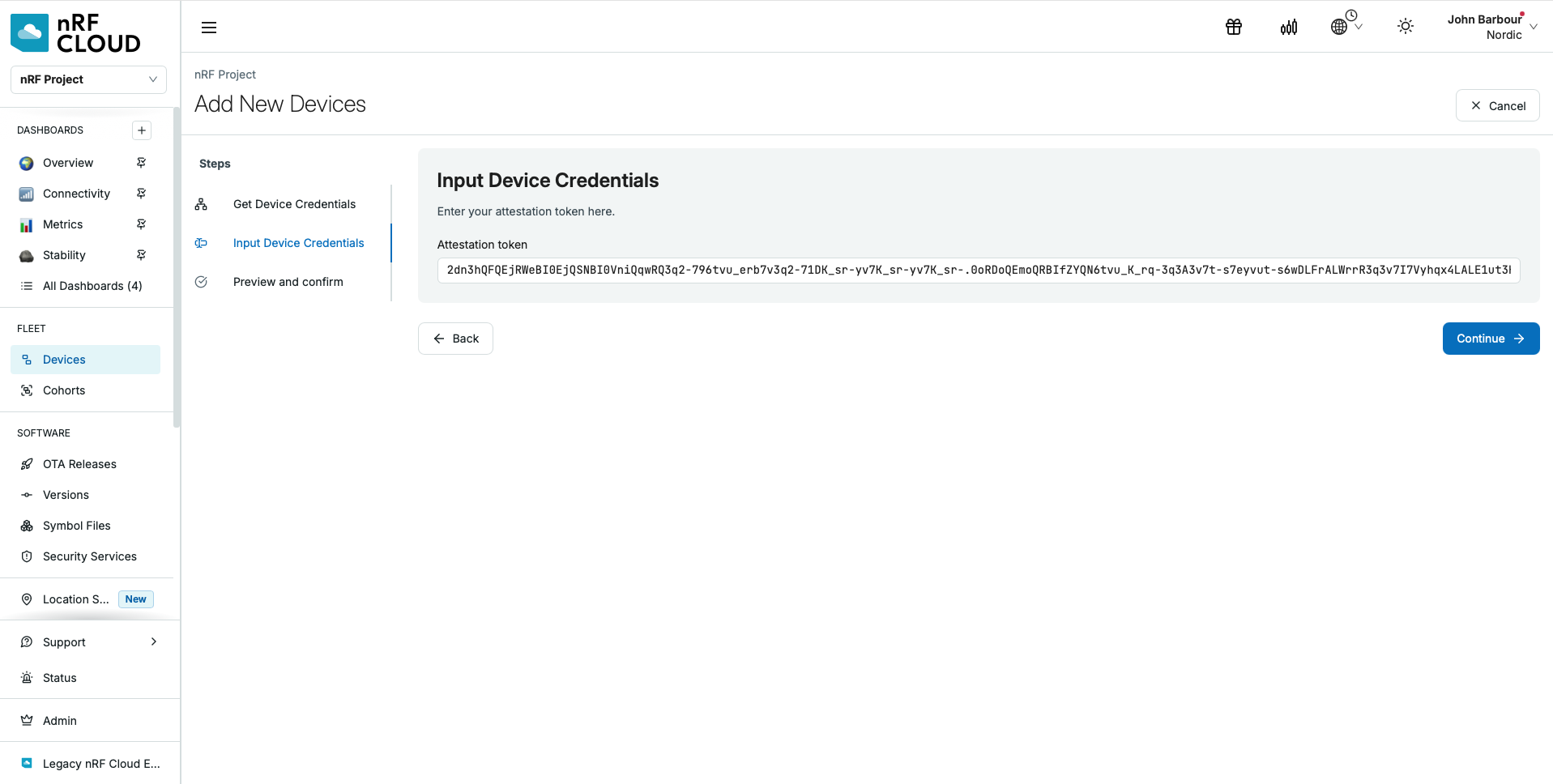
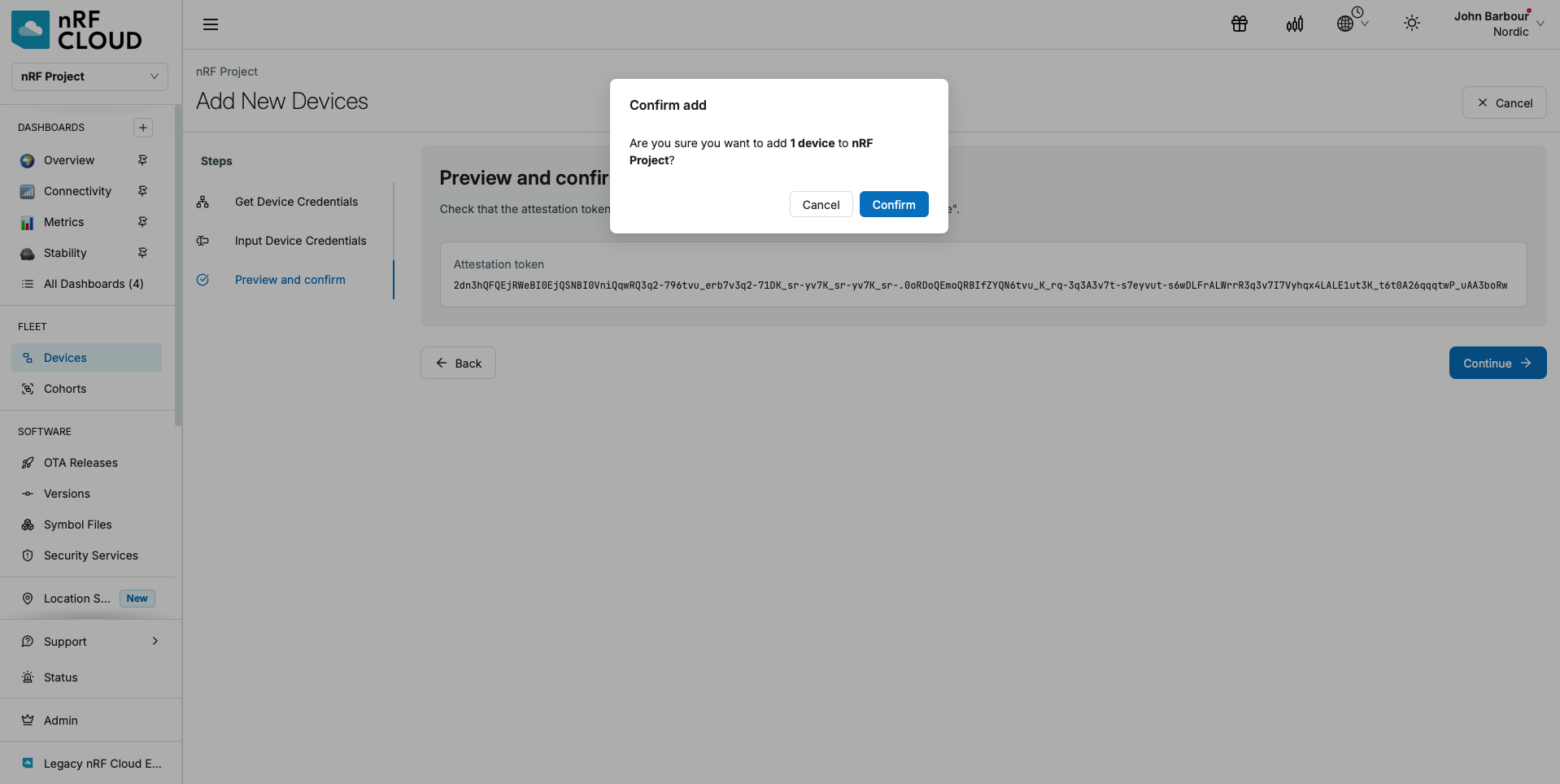
Paste the token into the Attestation token field on the Input Device Credentials step.
-
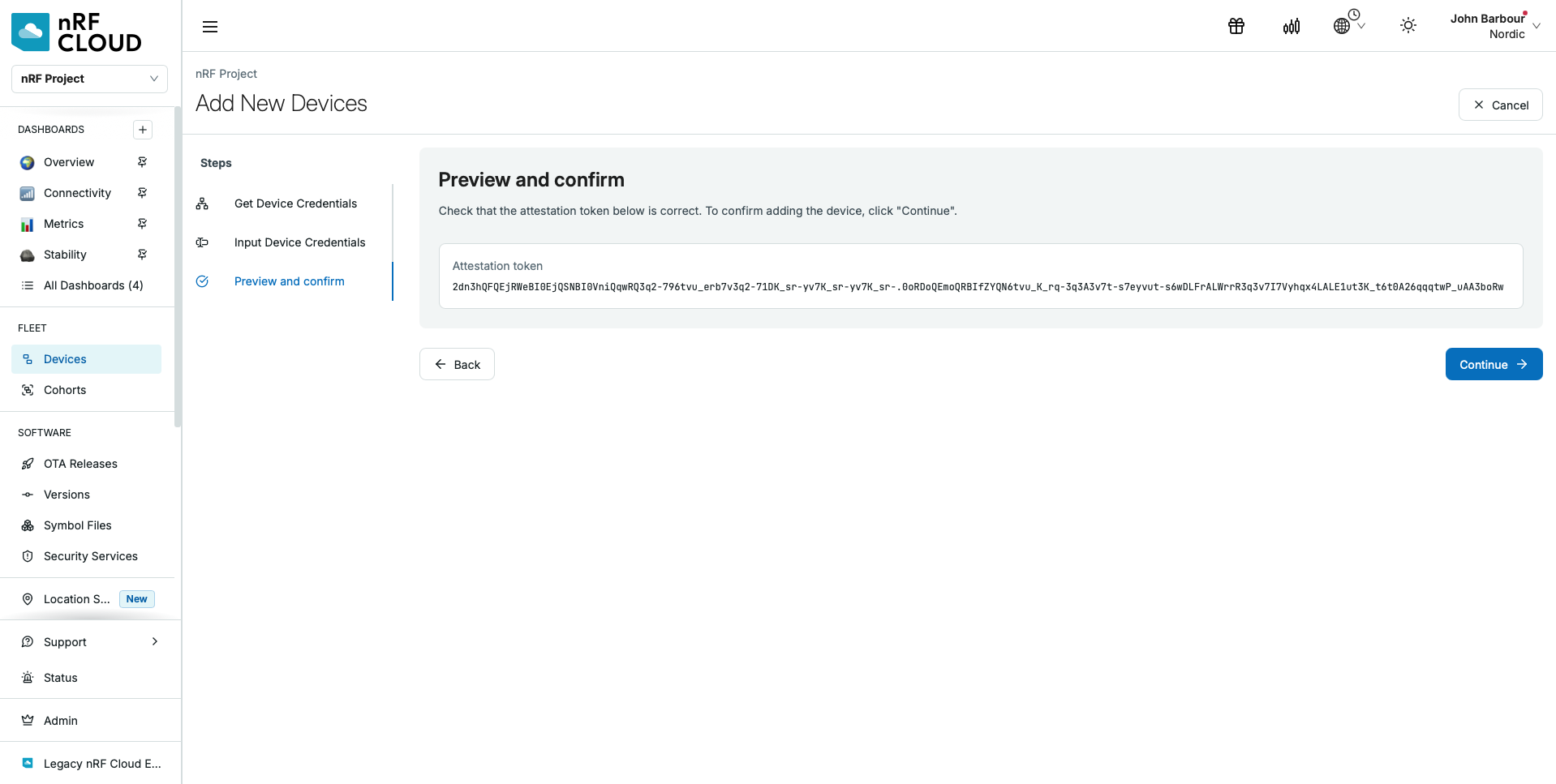
Review the device information, then confirm that you want to add it.
What happens after onboarding
The device appears in the Device Inventory within a few minutes, but it is not yet fully operational. When the device first connects to nRF Cloud, it begins provisioning, which generates and registers a new cloud access key. The device becomes fully operational after the final credentials are installed.
Provisioning happens automatically. To confirm that it is complete, open the device details page and verify that its Provisioning Status is Successful.
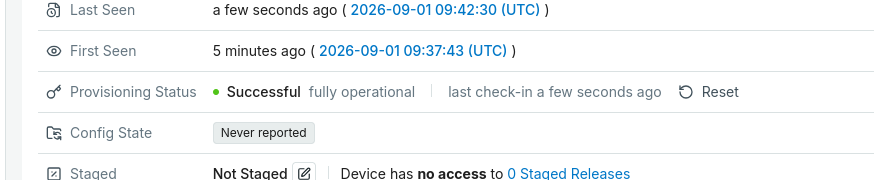
The Provisioning Status row also shows when the provisioning client last contacted nRF Cloud. This check-in time is different from Last Seen, which reports general device connectivity. The provisioning client checks in less frequently, typically twice a day.
Provisioning status and technical details
The device details page shows one of the following provisioning statuses:
- Not Provisioned: The device has not contacted nRF Cloud yet.
- In Progress: The credential exchange is ongoing.
- Successful: The device is fully operational.
- Failed: The credential exchange did not complete.
For faster iteration during development, reboot the device to trigger a new provisioning attempt without waiting for its next scheduled check-in.
Provisioning
All nRF Cloud onboarding commands use the fixed security tag 16842753. The
provisioning client executes the following modem AT commands:
AT%CMNG=3,16842753,<credential_type>removes an existing credential.AT%CMNG=0,16842753,0,"<root_ca>"stores a trusted root CA certificate.AT%KEYGEN=16842753,2,0generates a private key in secure storage and returns a certificate signing request.AT%CMNG=0,16842753,1,"<client_certificate>"stores the client certificate.
To list the credentials currently stored on the device, run:
AT%CMNG=1
The command can return credentials used by multiple services. nRF Cloud
onboarding credentials use security tag 16842753.
Cloud access key
A cloud access key is the device key pair created during provisioning. The private key remains in secure storage, while nRF Cloud registers the public key. The device signs JSON Web Tokens with the private key to authenticate with nRF Cloud.
Reset provisioning
To re-provision a device, select Reset on its device details page. The current connection remains open and continues using the existing cloud access key. Provisioning restarts and generates a new key only when the device next checks in.
Deactivate and reactivate devices
Deactivation removes an nRF9151 or nRF9161 device from your fleet but keeps its claim. You can reactivate it later, and no other project can onboard it in the meantime. Deactivation permanently removes the device's associated fleet data.
Deactivate a device
- In nRF Cloud, open the device's details page.
- Select Deactivate.
While a device is deactivated:
- The service rejects the device when it attempts to authenticate.
- The device receives no provisioning commands.
- Its Nordic Identity stays claimed by your project.
- No command is sent to decommission, reset, or erase the physical device.
Find and reactivate a deactivated device
A deactivated device leaves the Device Inventory and appears under Deactivated Devices.
- Go to Fleet → Devices.
- At the bottom of the Device Inventory, select View deactivated devices. Select Refresh list if you have just deactivated a device and do not see it yet.
- Select the device to view its deactivation details.
- Select Reactivate, then confirm.
nRF Cloud adds the device back to the Device Inventory immediately. The device must provision again before it can send data, and all data deleted during deactivation remains deleted.
For fleet organization and device deletion, see Manage onboarded devices.
Troubleshooting
- A device does not appear after onboarding. Wait a few minutes, then reload the Device Inventory.
- A device was added but never checks in. Confirm that its firmware enables the provisioning client. See Device firmware requirements.
- Onboarding reports that the device belongs to another project. Remove the device from its current project before trying again.
- Provisioning Status remains Not Provisioned. Confirm that the device is powered on and can connect to nRF Cloud. During development, reboot it to trigger a provisioning attempt.
- Provisioning Status remains In Progress. Check the last provisioning check-in time. The client typically checks in twice a day.
- Provisioning Status is Failed. Copy the displayed failure details and contact support.
- Provisioning Status is Successful, but the device is not sending data. Check Last Seen and the device's network connectivity separately.